Recipe Details and Adjustments
The Recipes Details page provides detailed information on the dairy’s recipes, including individual ingredient locations, as well as dry matter (DM) and as fed (AF) data.
Users with permissions to edit this page can make adjustments to ingredient mixing order or to DM and AF quantities. If any DM or AF changes are made, the  button activates so that you can save your changes.
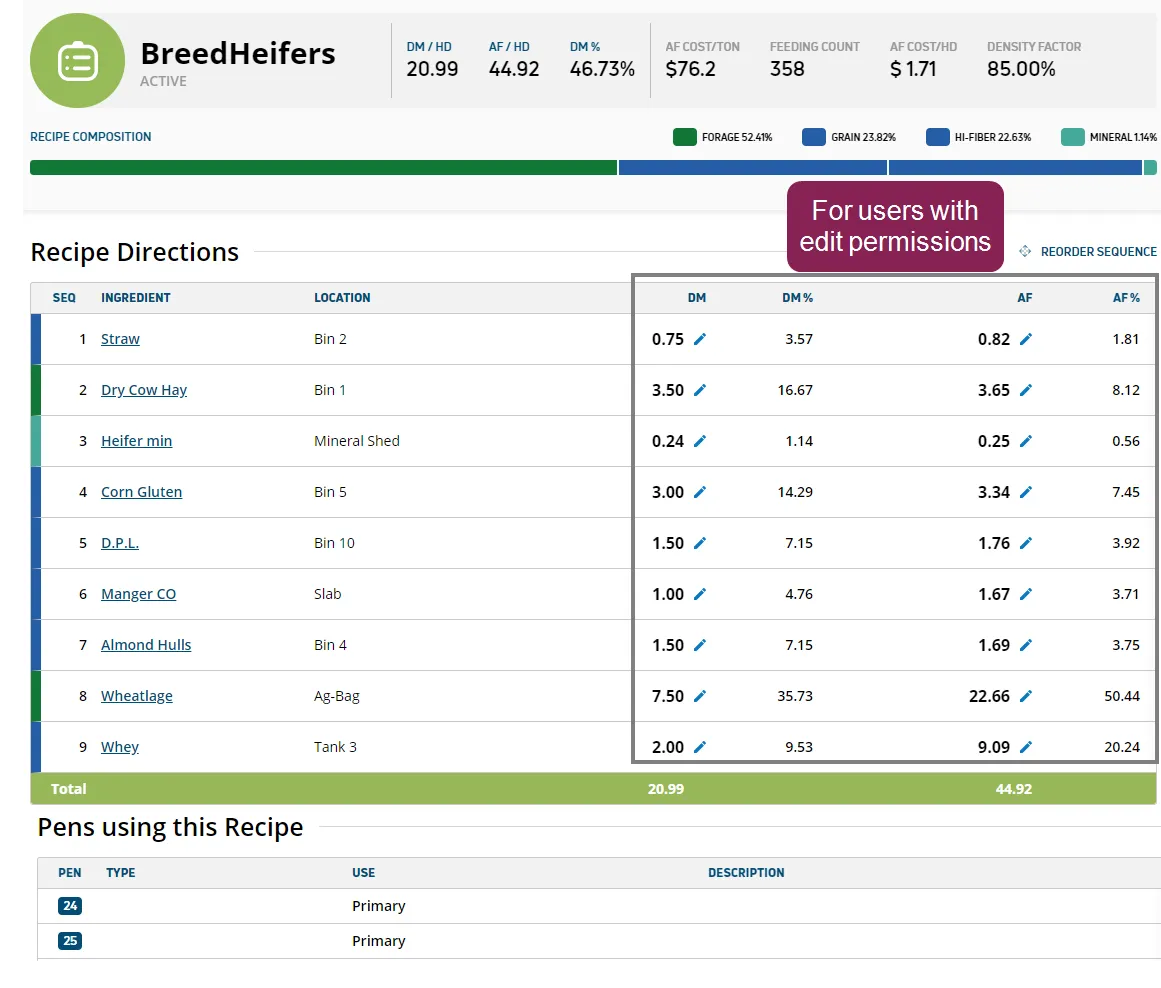
To view this page, click the Details link at the top right of any recipe card. The example below illustrates the information on this page.
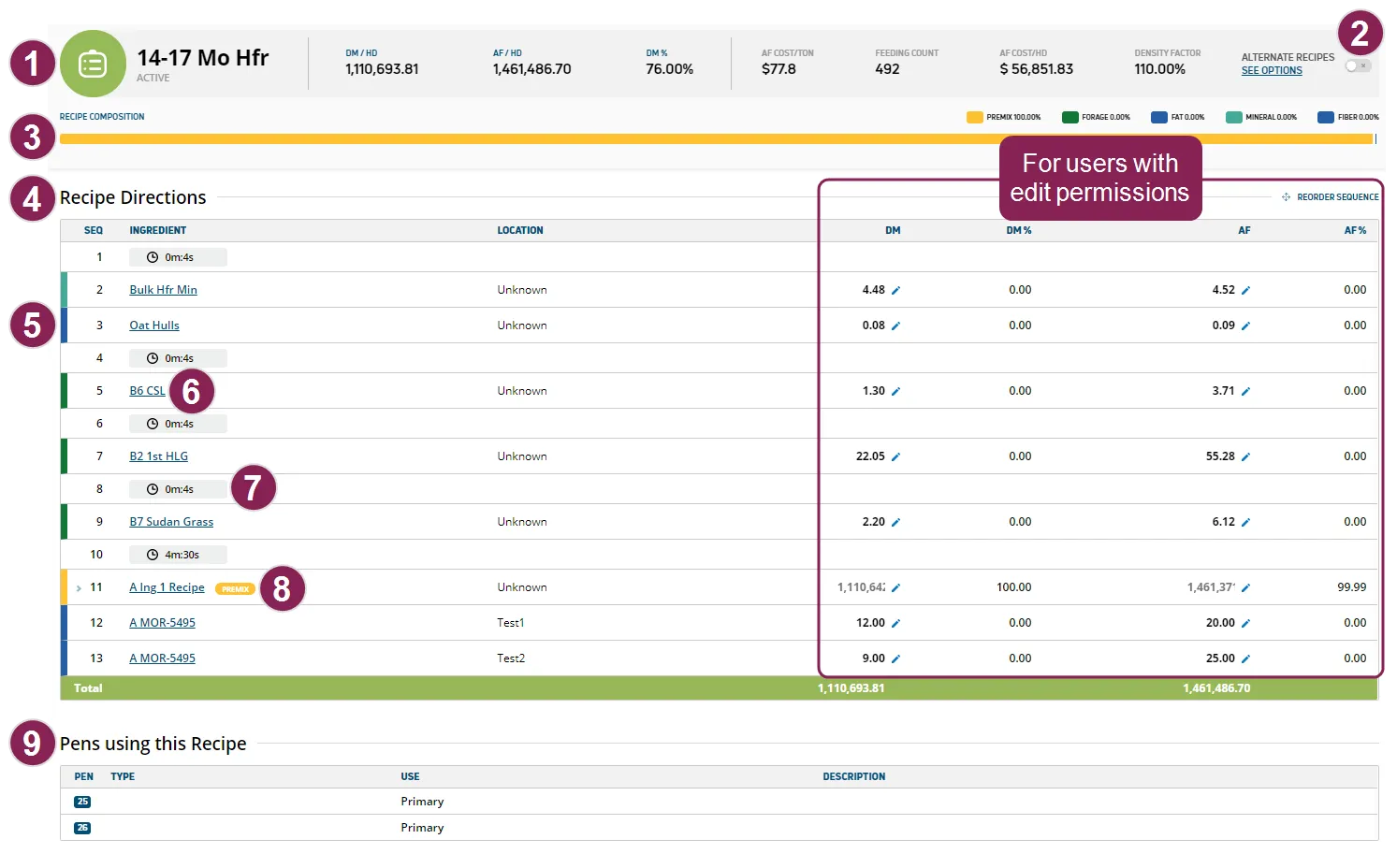
Details Summary: The top of the page displays a summary of the most relevant recipe details.

Alternate Recipes: If a recipe has alternate options (i.e., other recipes that can replace it), they display at the far right of the Details Summary, according to the following parameters:
- If the recipe has only one alternate, the name of that recipe displays in this section.
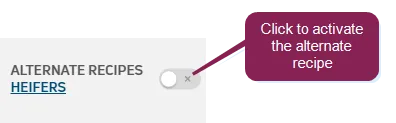
- To select the alternate recipe, click the switch to active it. When you do so, the Alternate Recipes field turns green.

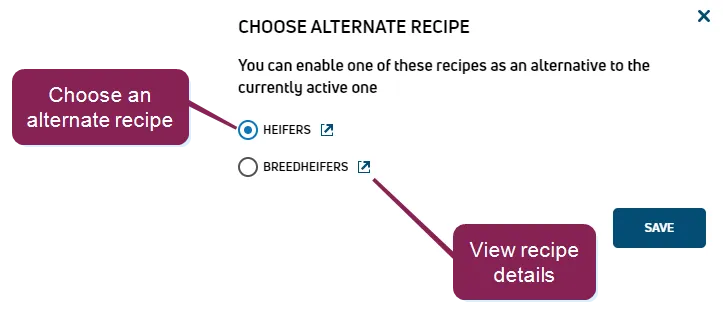
- If the recipe has multiple alternates, a SEE OPTIONS link displays. Click that link to display a window containing the alternate recipes, then choose the recipe you want. Additionally, you can view recipe details.
Recipe Composition: The Recipe Composition bar provides a quick glance at recipe composition by color‑coded ingredient type. The legend above the composition bar shows the percentage of each ingredient type that is included in the recipe. The recipe composition is based on dry matter quantities, so it will not include ingredients such as water that are 0% dry matter.

Recipe Directions: This section lists all ingredients in the recipe, as well as the order in which they should be mixed. The locations, quantities, and percentages are also listed for each ingredient. If a numbered row displays a gray bar with the clock symbol, it indicates a time lapse. See Step 7, Time Lapse, below for details.
Ingredient Type: The ingredient type is indicated by the color‑coded bar at the beginning of the row. The predefined types are Forage, Protein, Concentrate, Additive, Mineral, and Premix. Any type that does not belong to one of these categories is displayed with the color‑coded label for Other ingredient types (for example, Grain, Hi-Fiber, Fat, etc.).
Link to Ingredient Details: Click on any ingredient name to view its details. See IngredientsIngredients for help reviewing ingredient details.
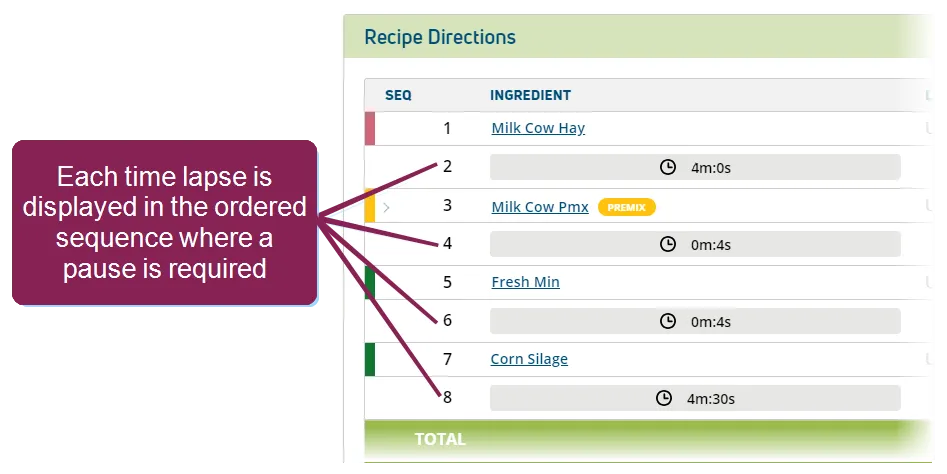
Time Lapse: If a recipe requires a pause during the mixing sequence, the pause (i.e., time lapse) will be displayed as a numbered item in the Recipe Directions. A time lapse in the mixing process can be used to allow the ingredients to be mixed for an allotted time. A time lapse may be desired after a specific ingredient is added to the mixer (for example, to mix coarse hay for an additional amount of time before the feeder is prompted to add the next ingredient to the mixer).
To easily distinguish a time lapse from an ingredient, time lapses are displayed as a gray bar and clock icon on their own numbered row in the recipe. The length of the pause is shown in minutes and seconds (for example, 4m:30s).
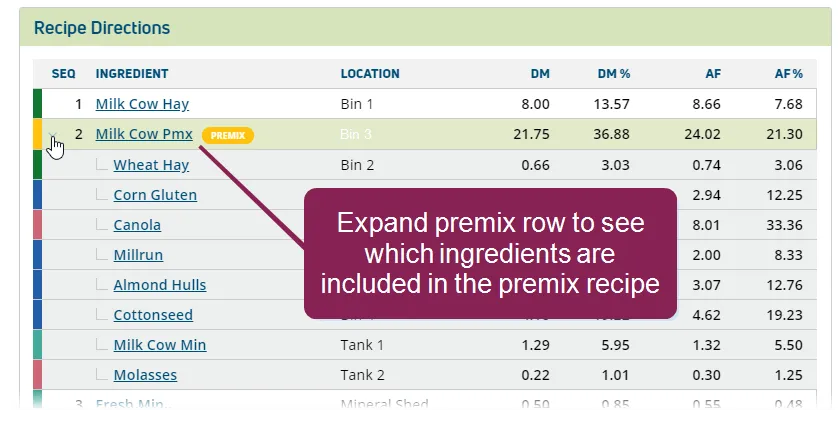
Premix Ingredient: Premix ingredients are displayed on an expandable row. Click anywhere on the row to expand it and view all ingredients that compose the premix. For more information on premixes, see Premix RecipesPremix Recipes.
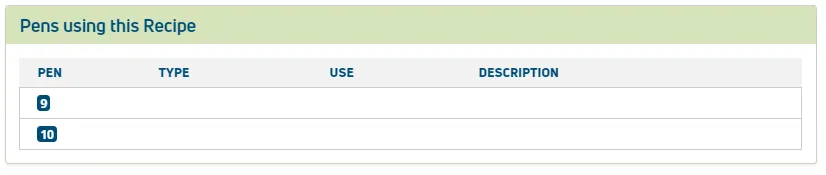
Pens using this Recipe: This section defines the Type of pen, Use (how the recipe is used to feed the pen), and a Description of the pen.
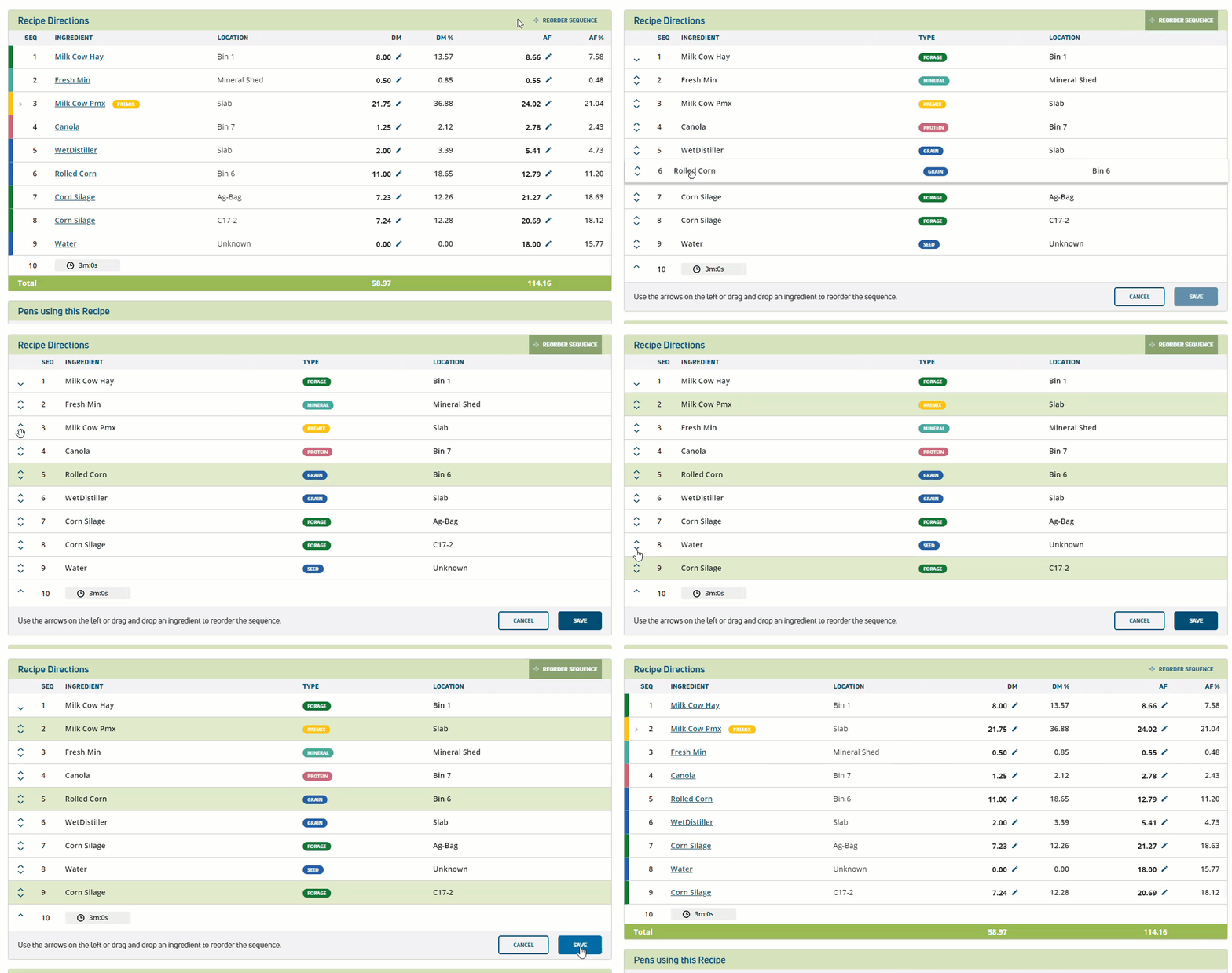
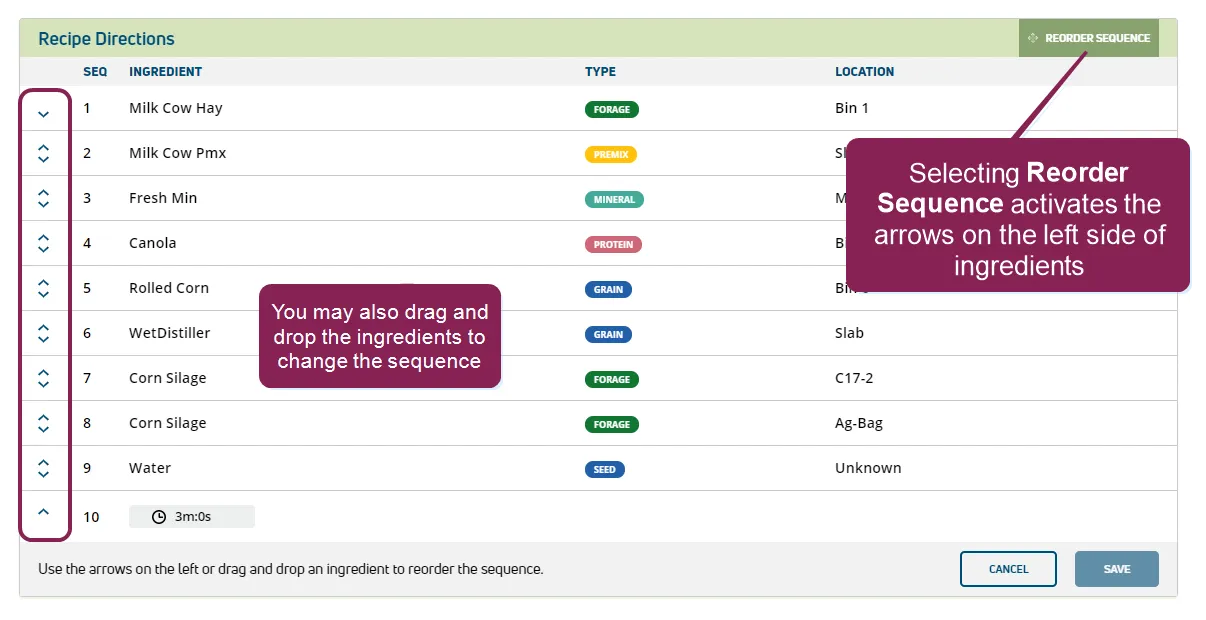
Users with permissions to edit this page can make adjustments to ingredient mixing order by selecting Reorder Sequence. Use the arrows on the left to move ingredients up or down, or drag and drop ingredients to adjust their position in the sequence. Once the mixing order is correct, select Save to capture your changes.
All sequence changes made during the current window session remain highlighted until you select Save.
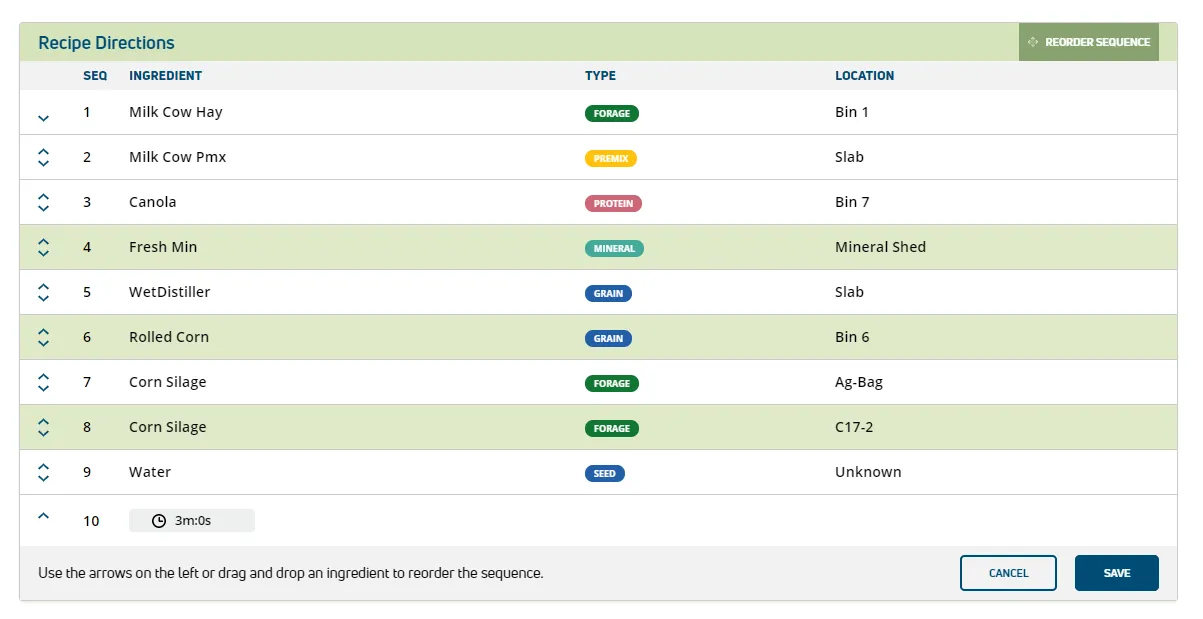
Watch this brief video to see a recipe order adjustment in action.