General Integration Instructions
3 min
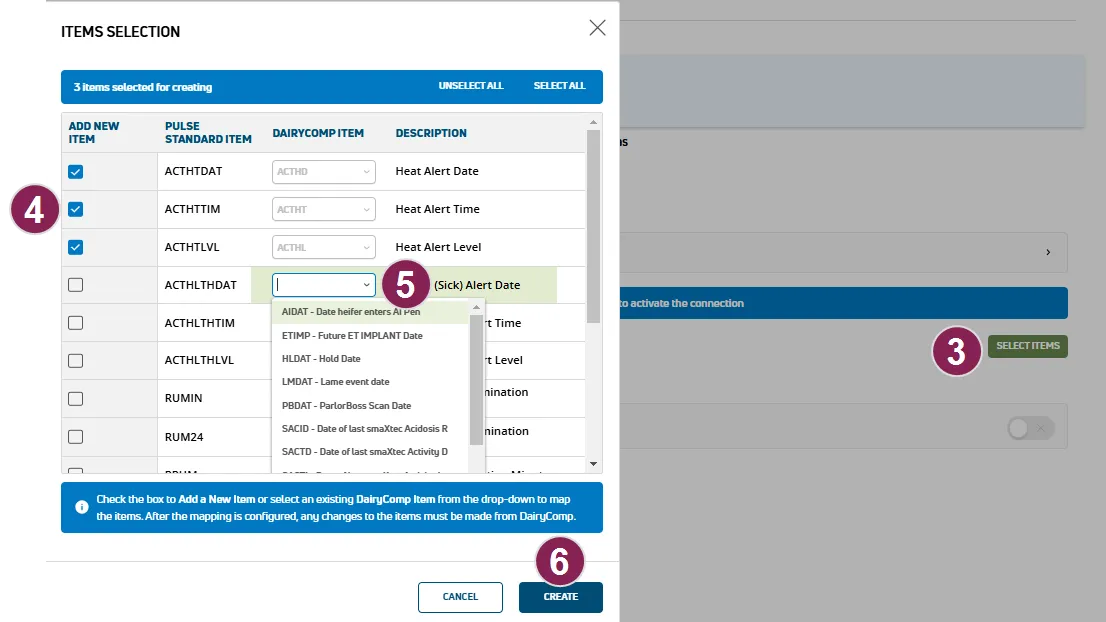
required permissions only users who are assigned a role with integrations management permissions can connect partner integrations see edit dairy user permissions docid\ gwf5x nqu chbcmzo3 be and manage dairy roles docid\ iarw cydtgnug6lkpcbuk for more information all available vas pulse integrations are available from the integrations gallery docid\ bpsipb7t0v7uqi8fuabh4 steps to connect specific integrations vary by partner and are shown on the right side of the partner integration details docid\ mzg8k e5hr62hdh5ztn3y page note if the partner you are looking for is not available from the gallery, a pulse integration is not available contact us docid\ xdsgt2ueyvxygqh8efvdi to discuss adding a new partner the general steps for connecting a partner system with vas to allow data to display in pulse are as follows step 1 partner system setup contact your partner company representative to enable the integration with vas and complete any required setup from their system step 2 configure items in pulse important dc305 version 25 2 is required to support mapping items from pulse for dairycomp unlimited dairies see update dairycomp to the latest release docid\ ebeqsmccwmoq 6dbm5x7v for update instructions for data to be sent to pulse (and dc305 for dairycomp unlimited dairies), you must first identify the pens the integration applies to, as well as add new items or configure existing items to map to the partner's data points in pulse, navigate to partners > integrations gallery and locate your partner company click see requirements click select items to begin adding new items or mapping to existing items check the boxes to add new items to your dairy for the specific data you are connecting to pulse important select items for mapping carefully if you make an error and need to change your item configuration, you will need to correct the items in (for dairycomp unlimited dairies) or contact us docid 4ghs 95g97ps fckkm8su if you have an existing dairycomp item you'd like to use, select it from the dairycomp item drop down click create or done in the bottom right corner to finish adding and/or mapping your items confirm the addition or mapping of your items and click save step 3 connect integration in pulse follow these steps to establish the connection to the partner system click the connection status toggle and verify the status switches to active if necessary, click edit integration to make any adjustments or edits and save your changes important if your integration does not automatically connect, contact your partner company representative to connect the integration from their system