Using the Integrations Gallery
1 min
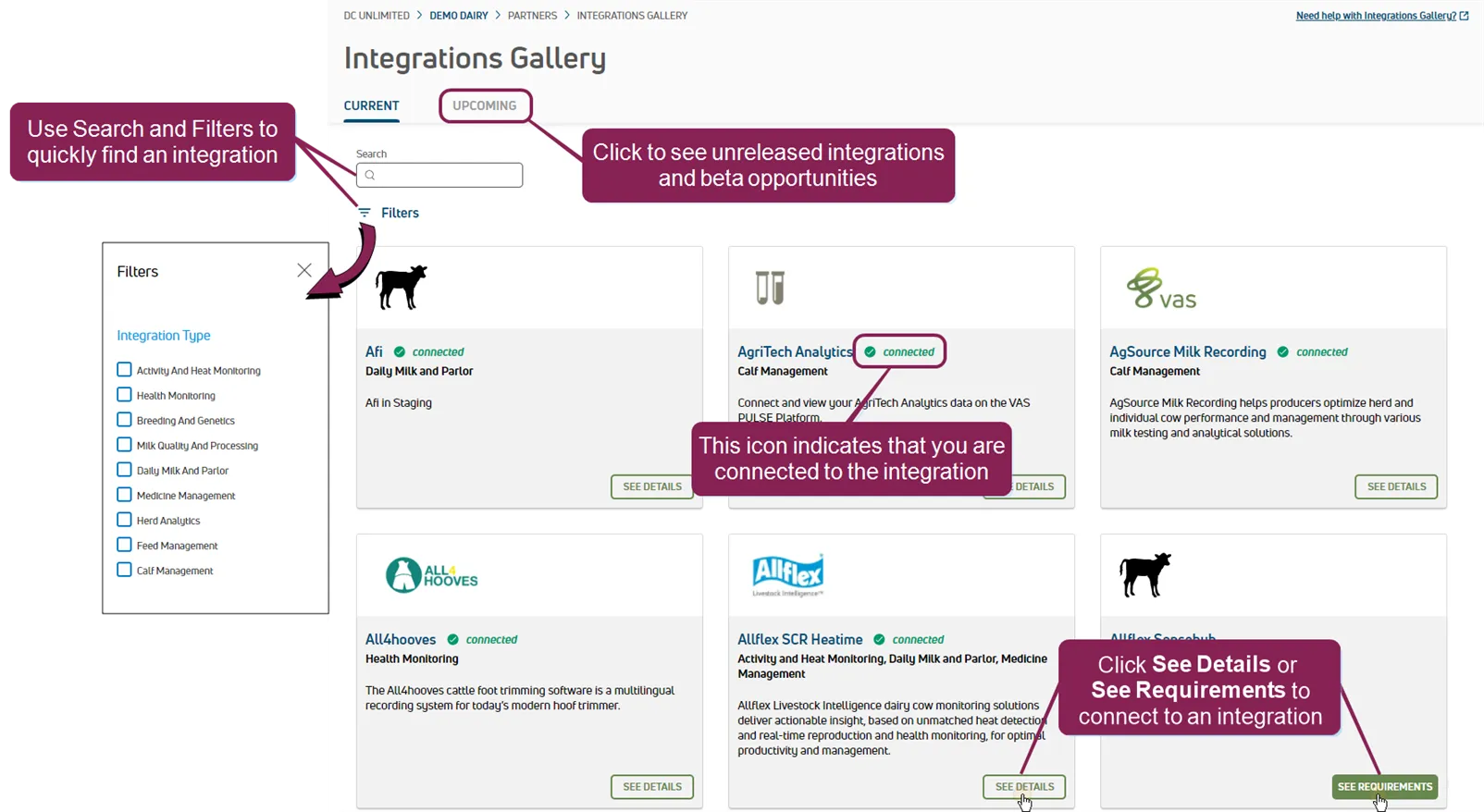
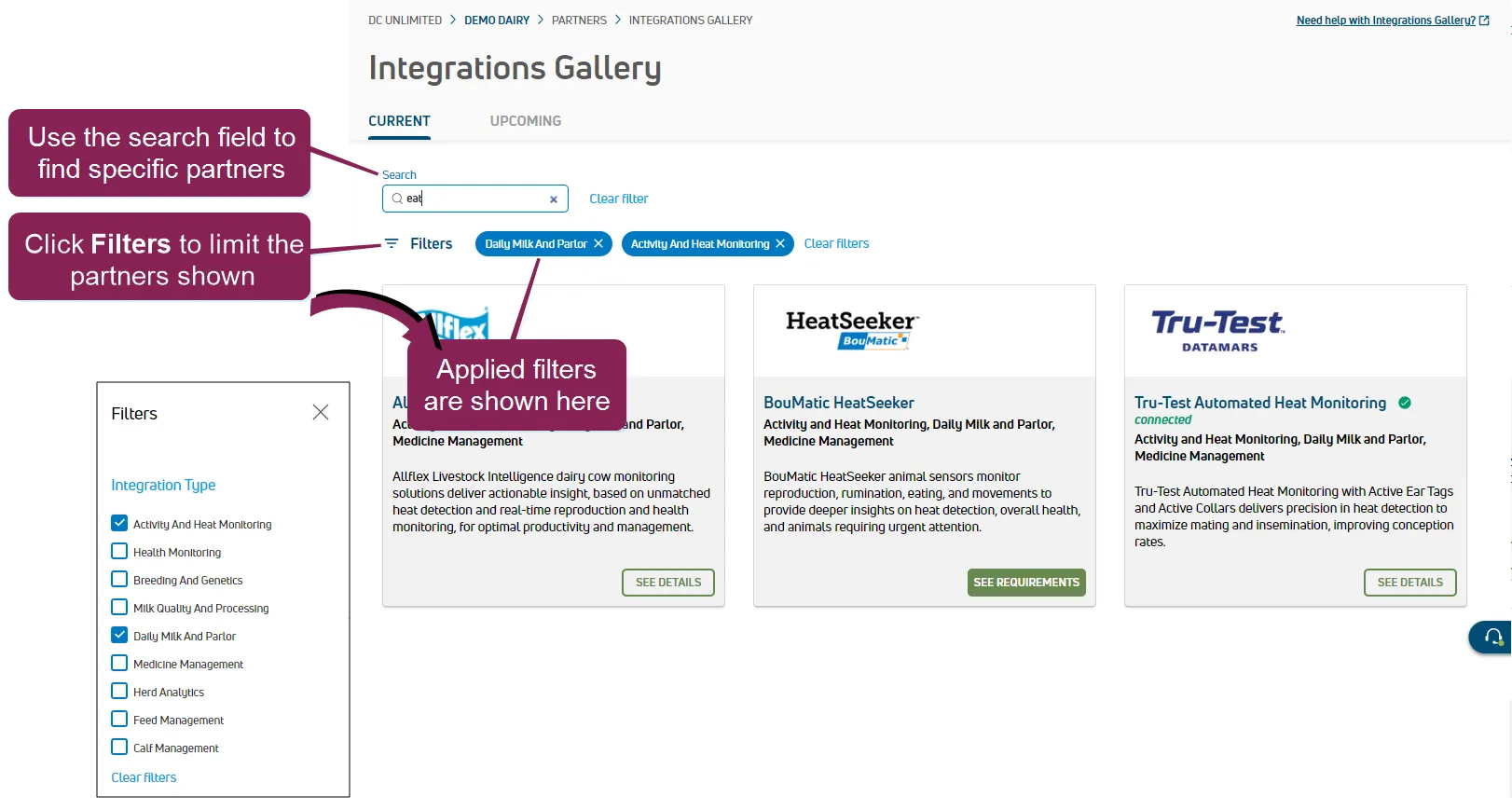
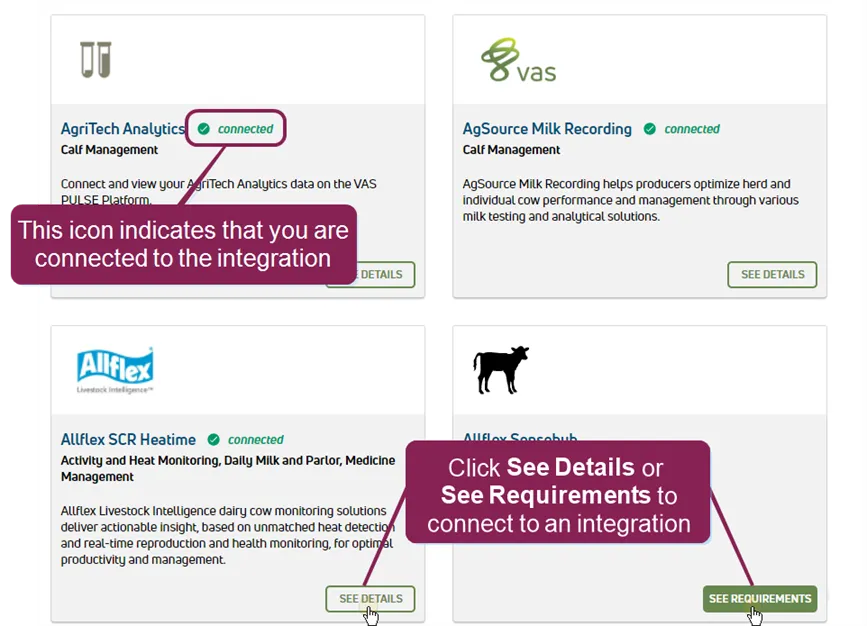
the gallery provides a brief summary of each partner product or service currently available for integration with pulse and includes search and filter features to help you find specific partners on the upcoming tab, you can join betas for one of our new, exciting integrations or simply learn more about what's coming out next to learn more, see upcoming integrations and beta testing docid\ fedh2 dtweb8lia21ojsd expand the sections below to learn more find an integration partner you can scroll through the gallery or use the search and filter features to find integration partners type text in the search field to search the list of current partners by name once text is typed, click the clear filter(s) option to clear the text typed select filters to open a side panel on the left of the page to filter the list of partners by specialty once a filter is applied, click the x on a specific filter to remove it or, click the clear filter(s) option to the right of the button to clear all filters connect an integration required permissions only users who are assigned a role with integrations management permissions can connect partner integrations see edit dairy user permissions docid\ gwf5x nqu chbcmzo3 be and manage dairy roles docid\ iarw cydtgnug6lkpcbuk for more information to connect to an integration, click see details or see requirements on any of the integration cards in the integrations gallery to open the partner integration details page follow the integration's connection instructions to activate the integration after you are connected to an integration, you'll see a connected icon on the integration card in the integrations gallery see partner integration details docid\ mzg8k e5hr62hdh5ztn3y to learn more about the content you'll see on the page