Connect Parlor Integration and Configure Shifts (MyDC)
This feature/option is available only for MyDC subscribers. DC Unlimited subscribers will not see it in PULSE because this functionality is controlled in on-premise DairyComp rather than in PULSE.
Click herehere to learn more about the different versions of PULSE.
Follow these steps to activate the parlor integration and view data in PULSE:
Follow these steps to configure and integrate your parlor with PULSE:
- In PULSE, navigate to Partners > Integrations Gallery > parlor partner.
- Click See Details or See Requirements on the parlor partner card.
- Follow the Connection Instructions on the right side of the page to establish the connection:
- Click the Connection Status toggle and verify the status switches to Active.
- Click Save.
IMPORTANT: As noted in the Connection Instructions, make sure you have TeamViewer installed on your PC. If necessary, you can download and install it here.
Once the data connection is active, you are directed to the shift scheduling page. Follow the guidelines below when adding your parlor details:
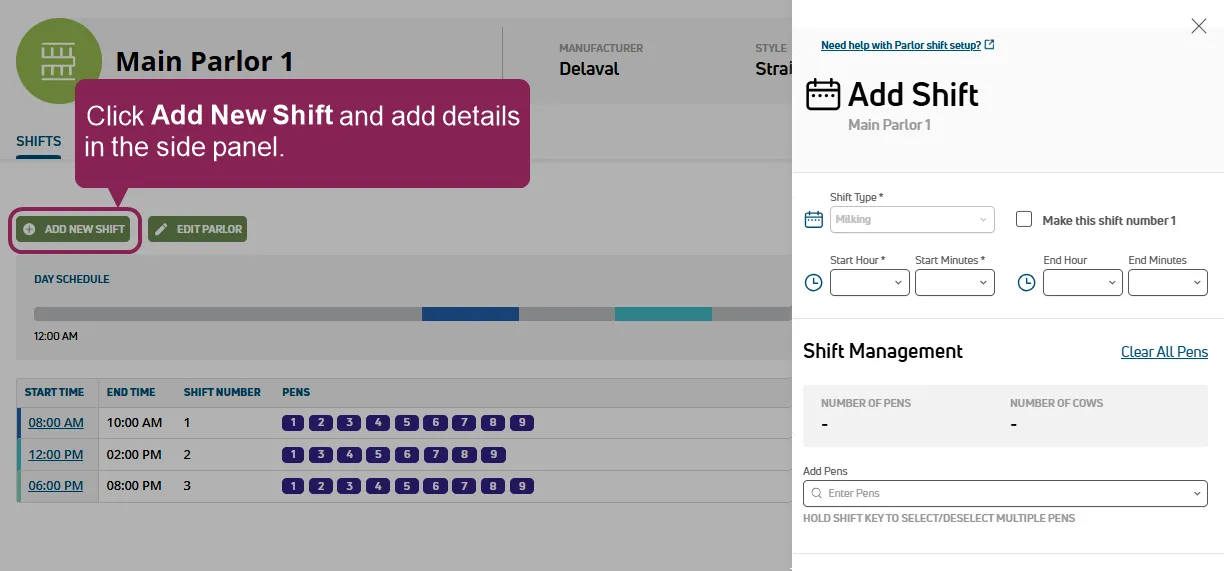
- Click Add New Shift at the top of the page to add each of your milking shifts and associated details.
- Shift Type: Select either a Milking or Cleaning shift.
- Start and End Hours/Minutes: Enter the times at which you want the new shift to start and end. The system warns you if you attempt to create a shift at a time that already has a shift scheduled.
NOTE: The format of the start and end times can be changed from standard time to 24-hour time in your Platform account settings. See Edit Your User Account to learn more.
- Shift Management: This section displays the number of pens currently assigned to the shift as well as the total number of animals in those pens. You can click the Clear All Pens link to remove all of the pens assigned to the shift.
- Add Pens: Enter the numbers of the pens you want assigned to the shift, separated by commas, or use a dash to indicate a range of pens. Click the "x" beside a pen number to delete it from the shift. You can also hold the shift key and check multiple pens from the drop-down.
NOTE: Pens do not need to be added in milking order.
- When complete, check the Day Schedule at the top of the page for a quick overview of your daily scheduled shifts:
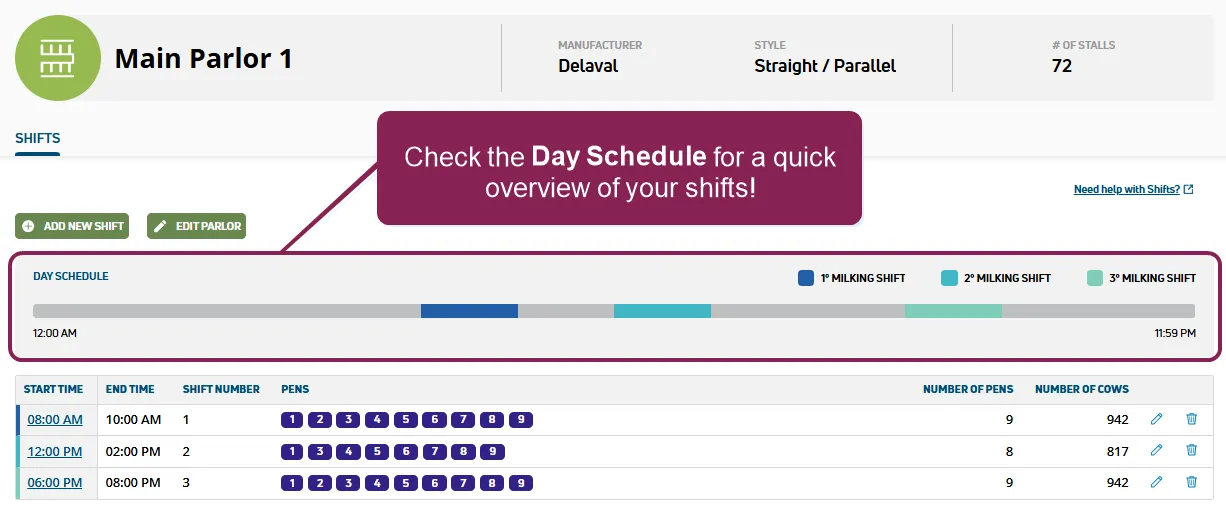
- If necessary, you can edit shifts or parlors, as well as delete shifts:
- Edit Shift Details: To edit a shift's details, click the edit icon
 .
.
- Delete a Shift: To delete a shift, click the delete icon
 .
.
- Edit Parlor Details: Click the Edit Parlor button in the upper left side of the page.
A VAS representative will contact you to confirm your parlor details and complete the connection. After the integration is active, you can View Parlor Data and Build ReportsView Parlor Data and Build Reports in PULSE.