PULSE Partner Integrations Ove...
...
Zoetis Data Overview
Activate Zoetis Data Integration
2 min
Only users who are assigned a Role with Integrations Management permissions can connect partner integrations. See Edit Dairy User PermissionsEdit Dairy User Permissions and Manage Dairy RolesManage Dairy Roles for more information.
Follow these steps to activate the Zoetis Data Integration in PULSE:
- In PULSE, navigate to Partners > Integrations Gallery > Zoetis Data Integration.
- Click See Details or See Requirements on the Zoetis Data Integration card.
- Follow the Connection Instructions on the right side of the page to establish the connection:
- Click the Connection Status toggle and verify the status switches to Active.
- Click Save.
- If necessary, click Edit Integration to make any adjustments or edits and save your changes.
To enable the integration, user-defined items or events must be mapped to a standard item or event. Follow these steps to configure and map the required items and events:
- In PULSE, navigate to the DairyComp > Settings page and select Item DefinitionsItem Definitions or Event DefinitionsEvent Definitions from the list on the left side.
- Find the user-defined item or event , then click the item or event to edit its details in a side panel.
- In the Standard Item or Standard Event field, select the standard item or standard event equivalent for your user-defined item or event. For example, you can map the user-defined event your dairy uses to record lameness to the standard LAME event.
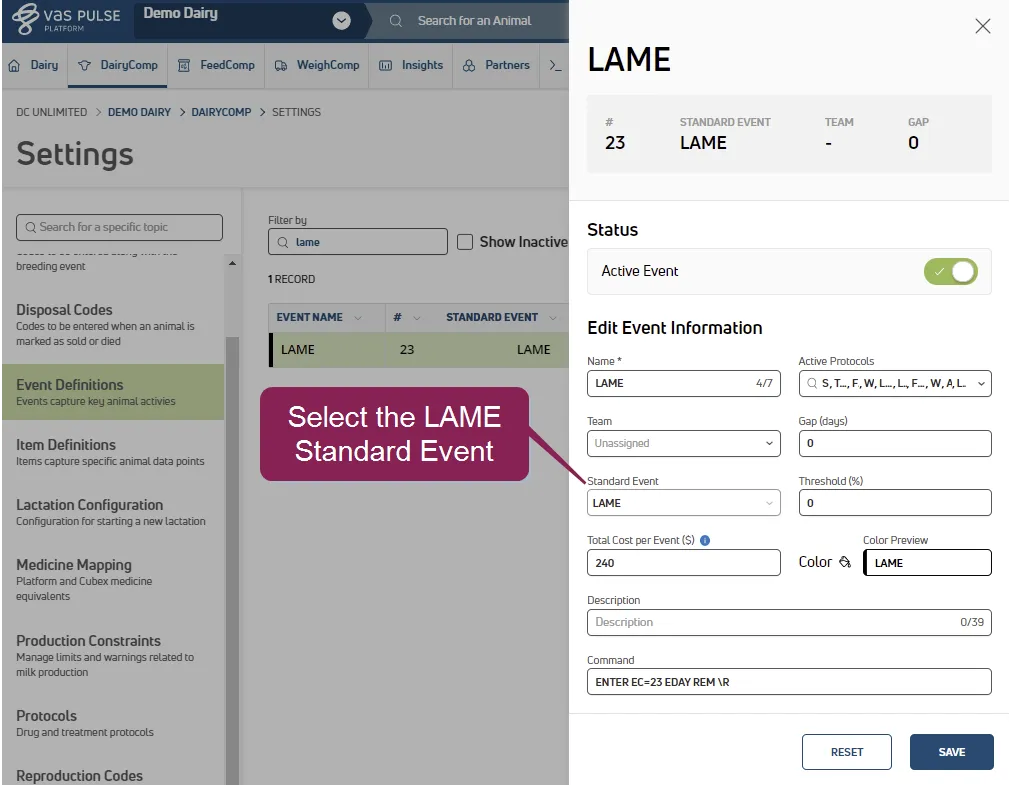
NOTE: The system disables the field if the item or the event is already mapped.
- Click Save.