Activate Activity Monitoring Integration
Only users who are assigned a Role with Integrations Management permissions can connect partner integrations. See Edit Dairy User PermissionsEdit Dairy User Permissions and Manage Dairy RolesManage Dairy Roles for more information.
Follow these steps to integrate the partner system with VAS and allow heat and health attentions and sensor data to display in PULSE:
Contact your activity monitoring representative to enable the integration with VAS and complete any required setup.
IMPORTANT: DairyComp version 25.2 is required to support mapping items from PULSE for DairyComp Unlimited dairies. See Update DairyComp to the Latest Release in the DairyComp 305 online help for update instructions.
For device data to be sent to PULSE (and DairyComp for DairyComp Unlimited dairies), you must first add new items to capture the data or configure existing items to map to your device data.
In PULSE, navigate to Partners > Integrations Gallery and locate your partner company.
Click See Requirements.
Click Select Items to begin adding new items or mapping to existing items. Expand Available ItemsAvailable Items below to learn more about each item.
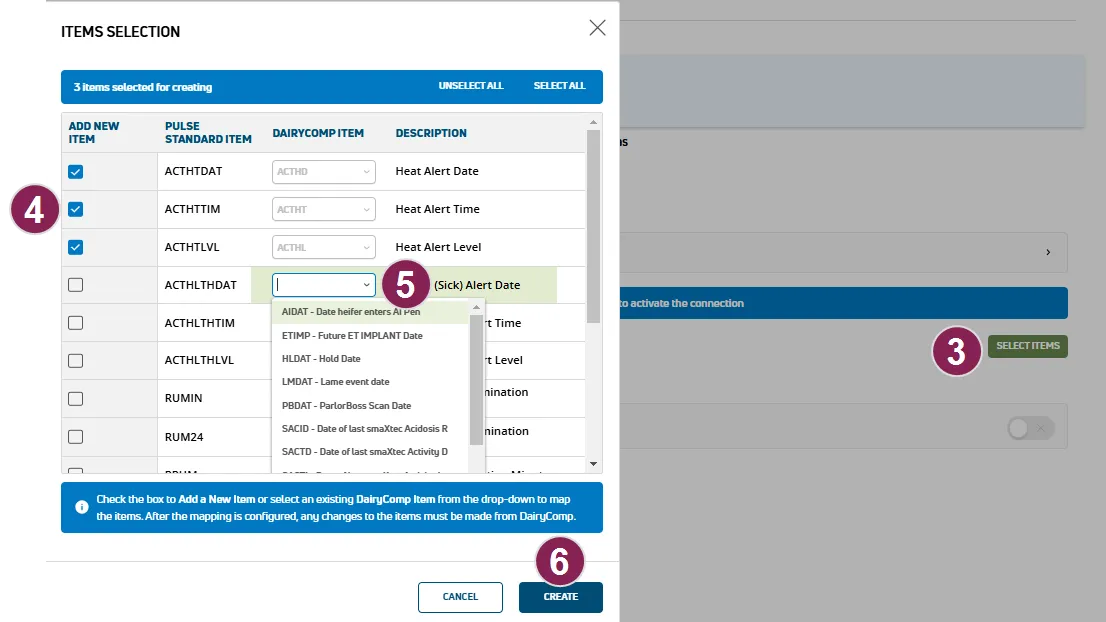
Check the boxes to add new items to your dairy for the specific data you are connecting to PULSE.
IMPORTANT: Select items for mapping carefully. If you make an error and need to change your item configuration, you will need to correct the items in DC305 (for DairyComp Unlimited dairies) or contact VAS Support .
If you have an existing DairyComp item you'd like to use, select it from the DairyComp Item drop-down.
Click Create or Done in the bottom right corner to finish adding and/or mapping your items.
Confirm the addition or mapping of your items and click Save.
IMPORTANT: Item names can be customized and may differ from those suggested by VAS. If you choose to customize your item names, be sure to use the correct names for any reports or worklists you create.
Item Description | PULSE Standard Item | DairyComp Suggested Item |
|---|---|---|
Heat attention date | ACTHDAT | ACDAT |
Heat attention time | ACTHTIM | ACTIM |
Heat attention score | ACTHTLVL | ACLEV |
Health attention date | ACTHLTHDAT | DXDAT |
Health attention time | ACTHLTHTIM | DXDTIM |
Health attention score | ACTHLTHLVL | DXLEV |
Last eating time | EAT | EAT |
Last 24-hour eating time | EAT24 | EAT24 |
Previous to the last eating time (EAT) | PEAT | PEAT |
Last inactivity time | INACT | INACT |
Last 24-hour inactivity time | INA24 | INA24 |
Previous to the last inactivity time (INACT) | PINA | PINA |
Last rumination time | RUMIN | RUMIN |
Last 24-hour rumination time | RUM24 | RUM24 |
Previous to the last rumination time (RUMIN) | PRUM | PRUM |
Follow these steps to establish the connection to the activity monitoring partner:
- Click the Connection Status toggle and verify the status switches to Active.
- If necessary, click Edit Integration to make any adjustments or edits and save your changes.
IMPORTANT: If your integration does not automatically connect, contact your partner company representative to connect the integration from their system.