Complete Tasks
Worklists include animals that need to be seen by your dairy workers or animal health experts for a variety of reasons, such as performing pregnancy checks or treating animals in a hospital pen. Follow the steps below when checking or treating animals by worklist type:
Your options for processing animals vary depending on whether an animal has already been marked as DONE. Expand the following topics to learn more:
In the TODO tab, tap or scan any animal to determine if it is needed.
Tap Add Event.
Tap an event name to start adding an event.
Once at the event entry screen, enter all required and optional event details. See Event EntryEvent Entry (v1) for more information on available events and entering their details.
Tap Save if you have additional events to add or Save and Mark as Done if this is the only event needed and your check is complete for this animal.
The event is added for the animal. Add any additional events for the animal using the steps above.
If you need to return to the animal at a later point or to make other changes, you can Edit an EventEdit an Event or Delete an EventDelete an Event before marking the animal as Done.
Mark the animal DONE.
After events are added for the animal, tap the Mark as Done box, which moves it to the DONE tab and plays the audible cue Done. You can also mark the animal as DONE directly from the event entry screen by selecting Save and Mark as Done.
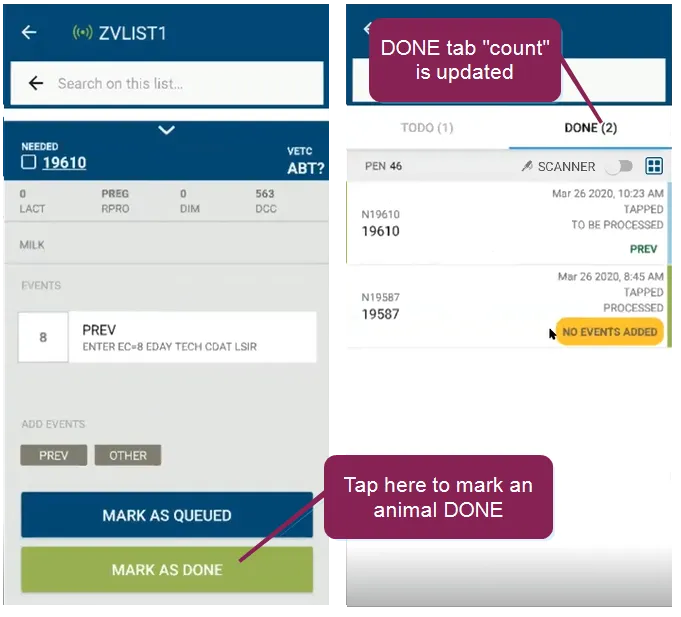
When you set an animal to DONE, the animal moves from the TODO tab to DONE, and the app sends the updated status to PULSE. The app captures the following details:
- Entry date/time
- Entry method (TAPPED and SCANNED are the only methods available in the current release)
- Event(s) (for vet lists and hospital lists only)
- Pen adjustments/corrections
NOTE: You can only complete the following steps before an animal is marked as DONE.
Tap the event. Make any changes on the event entry screen and tap Save.
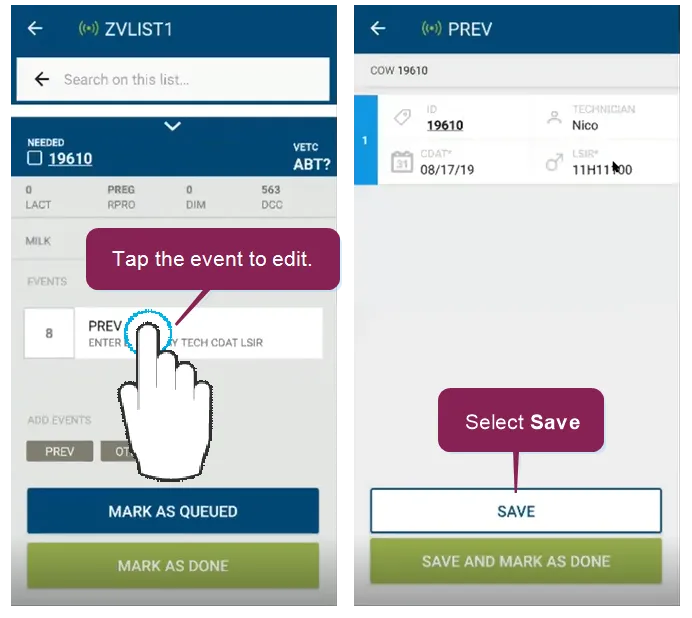
NOTE: You can only complete the following steps before an animal is marked as DONE.
Swipe to the left and tap Remove. Tap Yes to confirm the deletion.
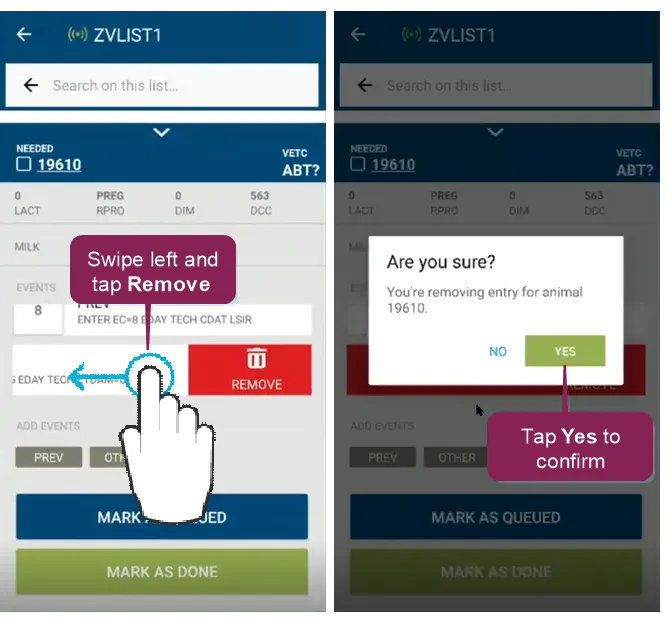
NOTE: You can only complete the following steps after an animal is marked as DONE.
If you mistakenly mark an animal as DONE and have not processed the update yet, follow these steps to undo it:
Open the list in the mobile app, select the DONE tab, and locate the animal you want to undo. Follow either of these steps:
- Tap the animal and then choose UNDO.
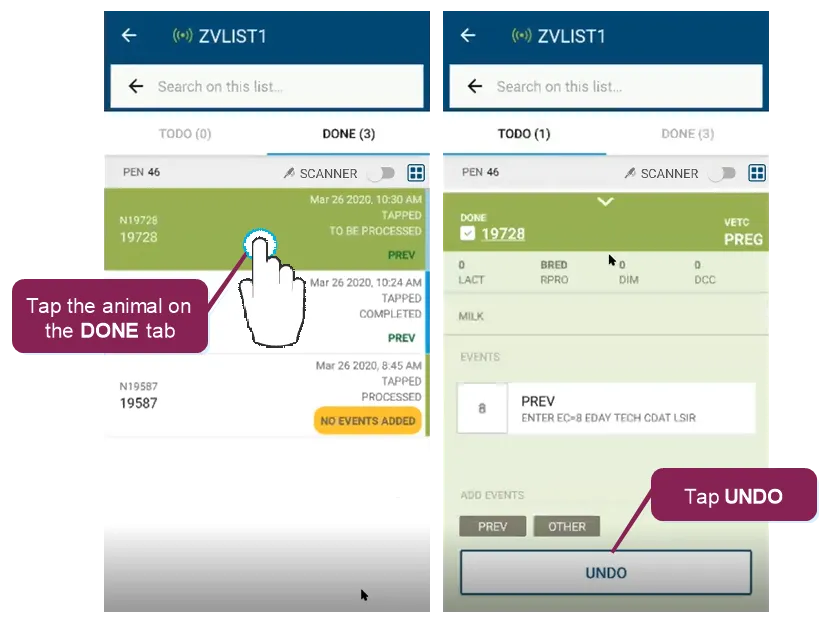
Swipe left on the animal.
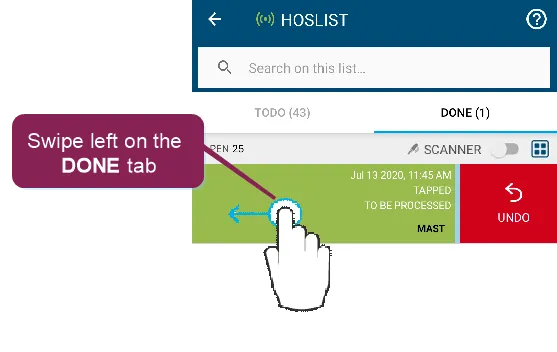
Tap Yes to confirm the UNDO.
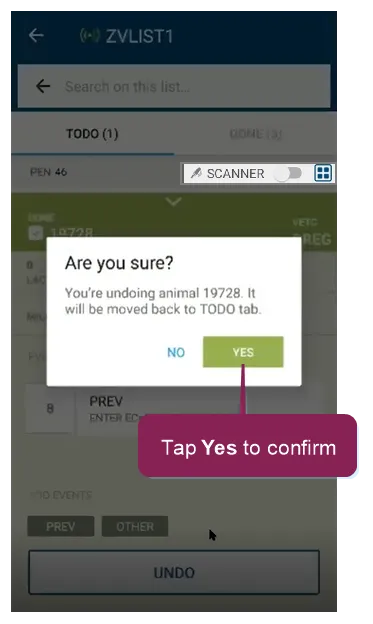
Once you confirm, the app moves the animal back to the TODO tab.
NOTE: Only animals with the status RECEIVED can be undone. If an animal's status is PROCESSING or PROCESSED, the change has already been sent to PULSE and cannot be undone.
Your options for processing animals vary depending on whether an animal has already been marked as DONE. Expand the following topics to learn more:
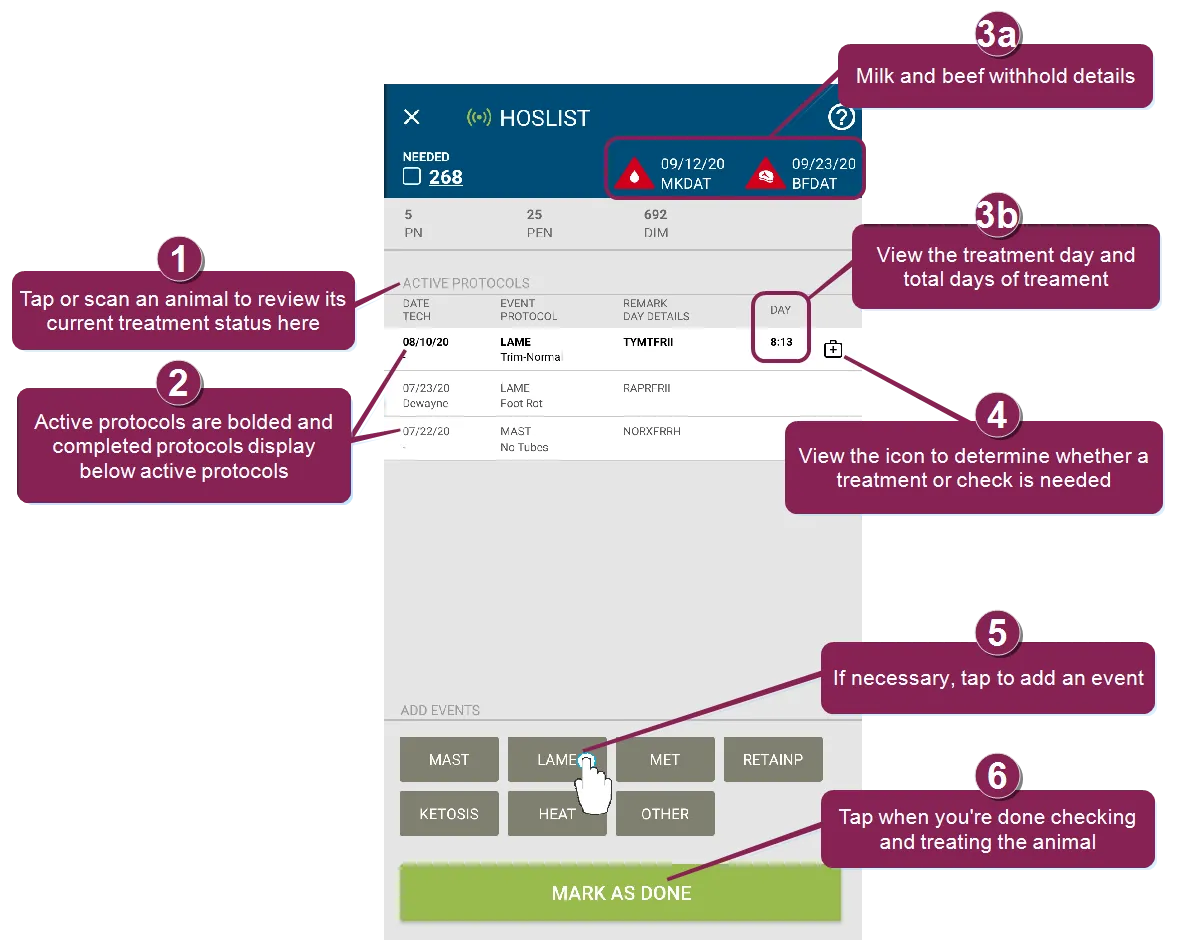
In the TODO tab, tap or scan any animal to determine if it is needed.
If necessary, apply the treatment(s) specified for all active protocols. Active protocols are shown in bold text, and completed protocols are displayed below all active protocols.
Quickly view important animal details, like:
- The animal's milk and beef withhold dates.
- The current day of the protocol and total number of days in the protocol are displayed in the DAY field. Day 2:3 indicates the animal is on day 2 of a 3-day protocol.
Depending on the animal's status, the app plays sounds to indicate the action required and displays icon(s) to indicate if a treatment is needed.
Audible Cue | Icon | Description and/or Required Action |
|---|---|---|
Treat this animal |  | Animal is on active protocol(s) and requires treatment. The current day of the protocol and total number of days in the protocol are displayed in the DAY field. Day 2:3 indicates the animal is on day 2 of a 3-day protocol. |
Evaluate and hold |  | Treatment protocol(s) are complete, but there is an active milk withhold (MKDAT>TODAY) and/or beef withhold (BFDAT>TODAY). Active withholds are indicated at top of the screen with a red icon and the end date. |
Check for residue |  | Treatment protocol(s) are complete, and the milk withholding period has ended (MKDAT=TODAY). Completed withholds are indicated at the top of the screen with a white icon and the end date. |
Ready for Beef | | Treatment protocol(s) are complete, and the beef withholding period has ended (BFDAT=TODAY). Completed withholds are indicated at the top of the screen with a white icon and the end date. |
Needed | n/a | Animal is on the hospital list, but not currently on a protocol or a milk or beef withhold. |
Buzz | n/a | Animal is not on the hospital list. |
Check device date; events are in the future | n/a | The diagnosis event date occurs on a future date. Verify that the device date is set correctly. |



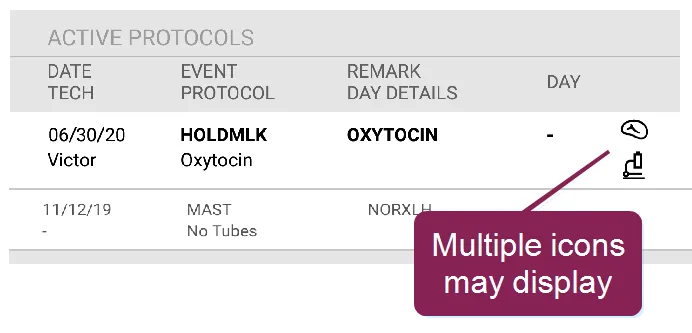
NOTE: It is possible for an animal to have more than one status, and in that case you will hear more than one sound and see multiple icons. For example, if an animal's milk and beef withholds end on the same day, you will hear both "Check for residue", "Ready for beef", and both icons display.
If the animal has a new diagnosis, go to the bottom of the screen and tap the event name or OTHER to start adding an event.
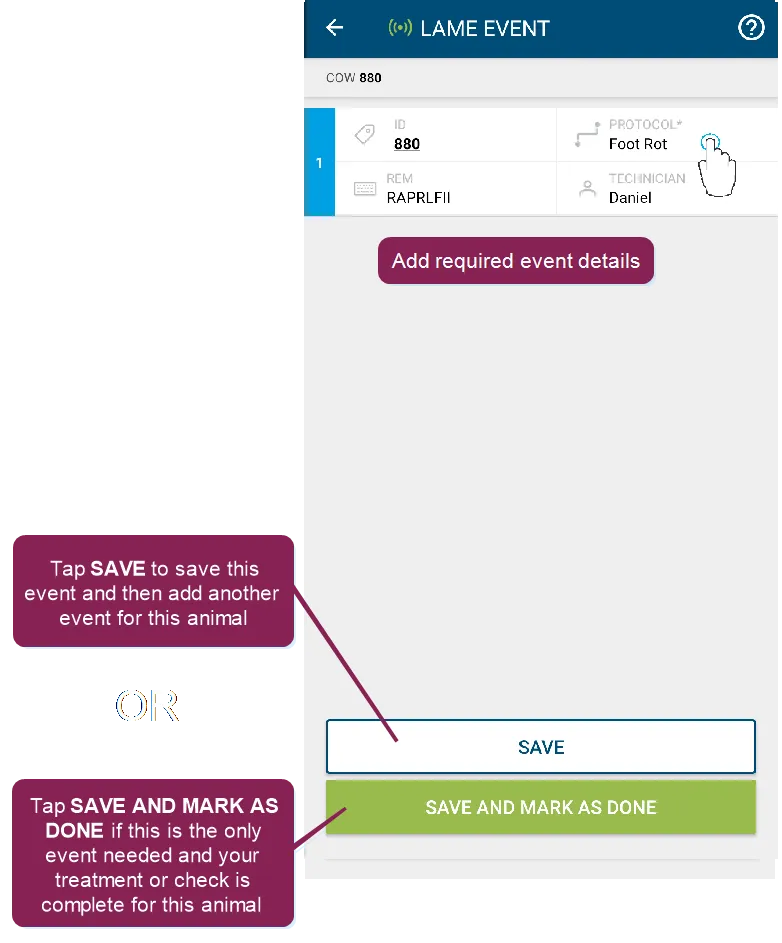
Once at the event entry screen, enter all required and optional event details. See Event EntryEvent Entry (v1) for more information on available events and entering their details.
If you only needed to add this one event and your treatment or check is complete for this animal, then tap Save and Mark as Done to add the event to the animal, including the Remark and Protocol details.
This example illustrates an event added to the animal.
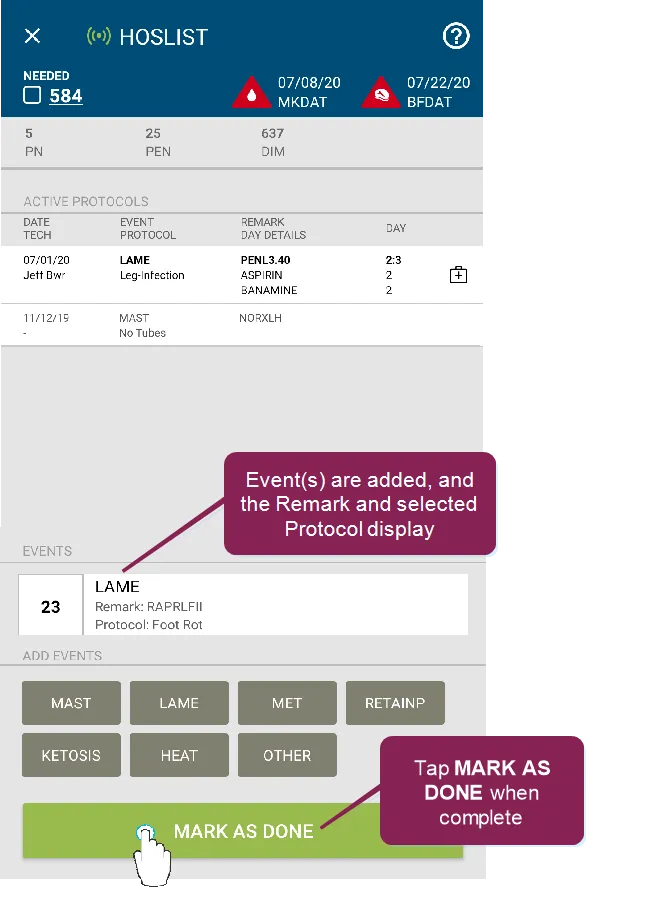
After the treatment or check is complete and any new events are added, tap the Mark as Done box, which moves it to the DONE tab and plays the audible cue Done. You can also mark the animal as DONE directly from the event entry screen by selecting Save and Mark as Done.
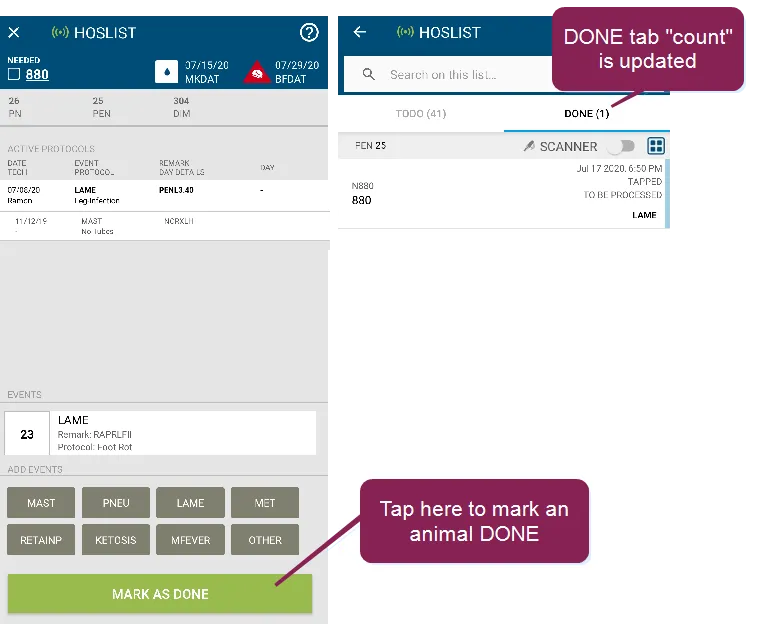
When you set an animal to DONE, the animal moves from the TODO tab to DONE, and the app sends the updated status to PULSE. The app captures the following details:
- Entry date/time
- Entry method (TAPPED and SCANNED are the only methods available in the current release)
- Event(s) (for vet lists and hospital lists only)
- Pen adjustments/corrections
NOTE: You can only complete the following steps before an animal is marked as DONE.
If you need to select additional events, tap Save and add any additional events for the animal using the steps above. If the animal has passed a check, has no milk or beef withholds, and is ready to move out of the hospital pen, proceed by adding a MOVE Event.
NOTE: You can only complete the following steps before an animal is marked as DONE.
Tap the event. Make any changes on the event entry screen and tap Save.
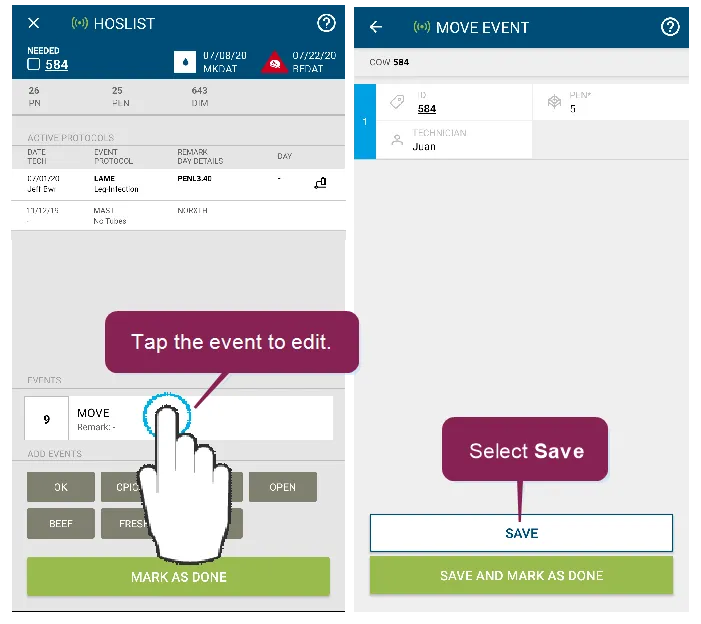
NOTE: You can only complete the following steps before an animal is marked as DONE.
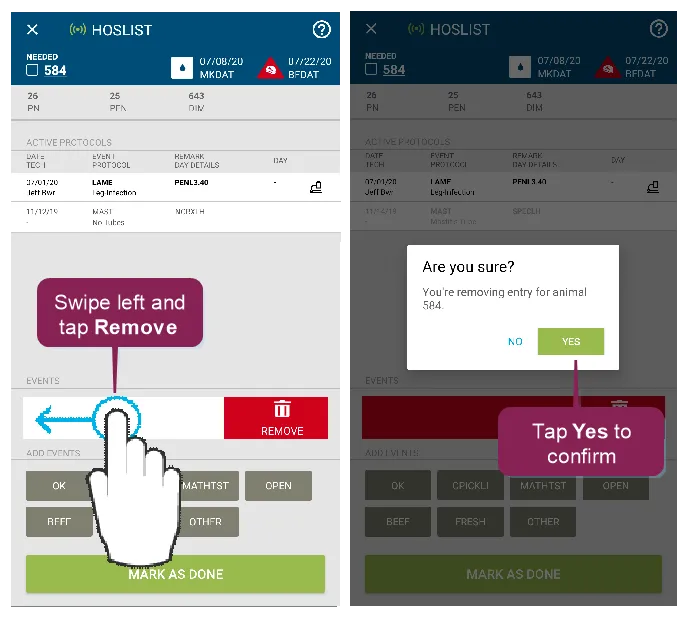
Swipe to the left and tap Remove. Tap Yes to confirm the deletion.
NOTE: You can only complete the following steps after an animal is marked as DONE.
If you mistakenly mark an animal as DONE and have not processed the update yet, follow these steps to undo it:
Open the list in the mobile app, select the DONE tab, and locate the animal you want to undo. Follow either of these steps:
- Tap the animal and then choose UNDO.
Swipe left on the animal.
Tap Yes to confirm the UNDO.
Once you confirm, the app moves the animal back to the TODO tab.
NOTE: Only animals with the status RECEIVED can be undone. If an animal's status is PROCESSING or PROCESSED, the change has already been sent to PULSE and cannot be undone.
Follow these steps to process an animal on an Open Tasks list:
From the Open Tasks list, tap All Pens to view all tasks in all pens or tap on a pen to view tasks only in that pen.
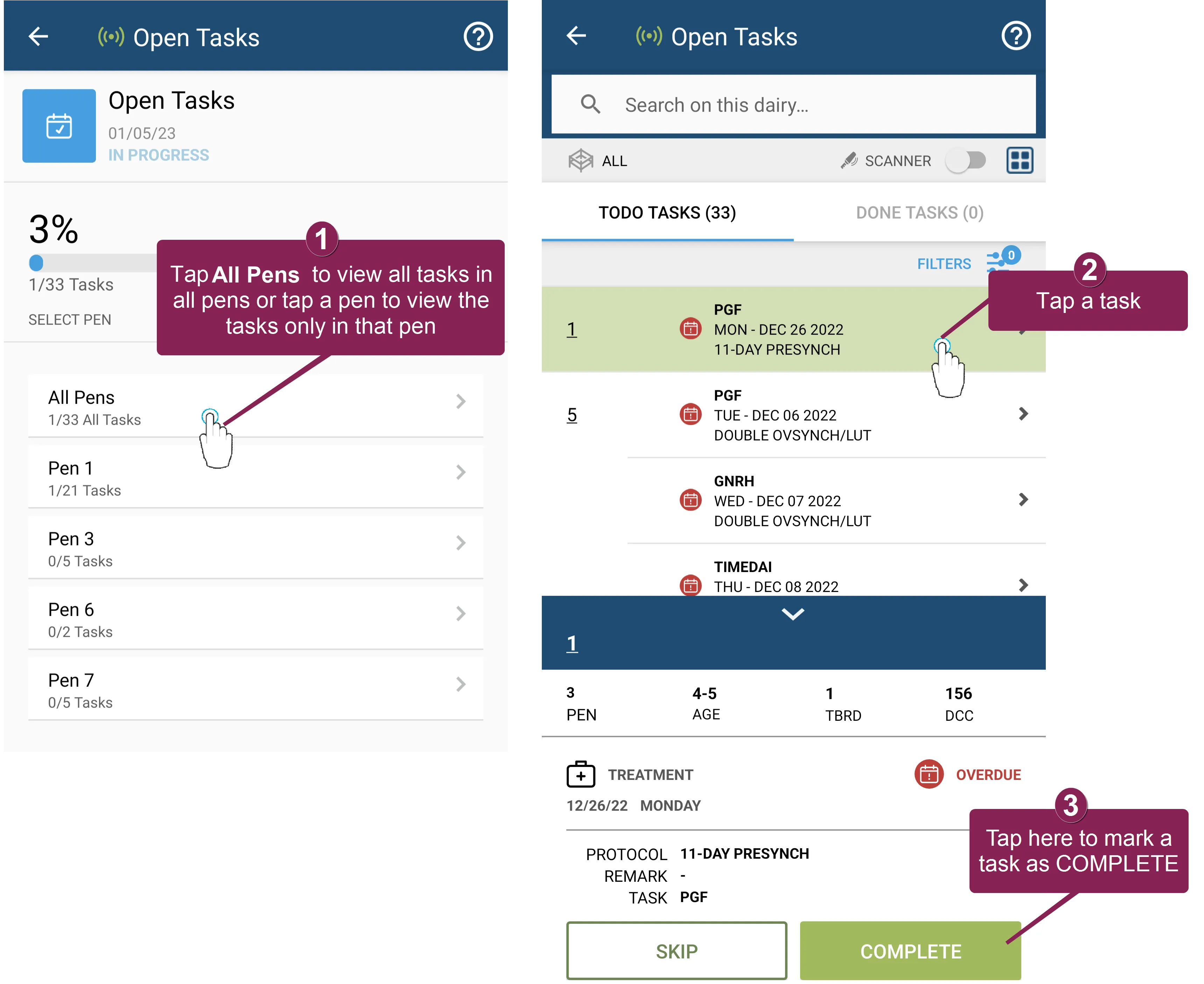
After you select a pen (or all pens) in your Open Tasks list, you can tap Filters at the top right of the screen to set your options. A badge on the icon indicates how many filters are currently applied to your list. Proceed to Complete TasksComplete Tasks (v1) to learn more about working with protocol tasks in mobile.
In the TODO tab, tap an animal's protocol task.
Mark the task as Complete or Skip, which moves it to the DONE tab and prompts the system to play the audible cue.
NOTE: If you mark a task as Complete, the tasks can only be undone for animals with the status RECEIVED. If an animal's status is PROCESSING or PROCESSED, the change has already been sent to PULSE and cannot be undone.
See Manage Protocol TasksManage Protocol Tasks to learn more about processing protocol tasks.
Follow these steps to process an animal on a to-do list.
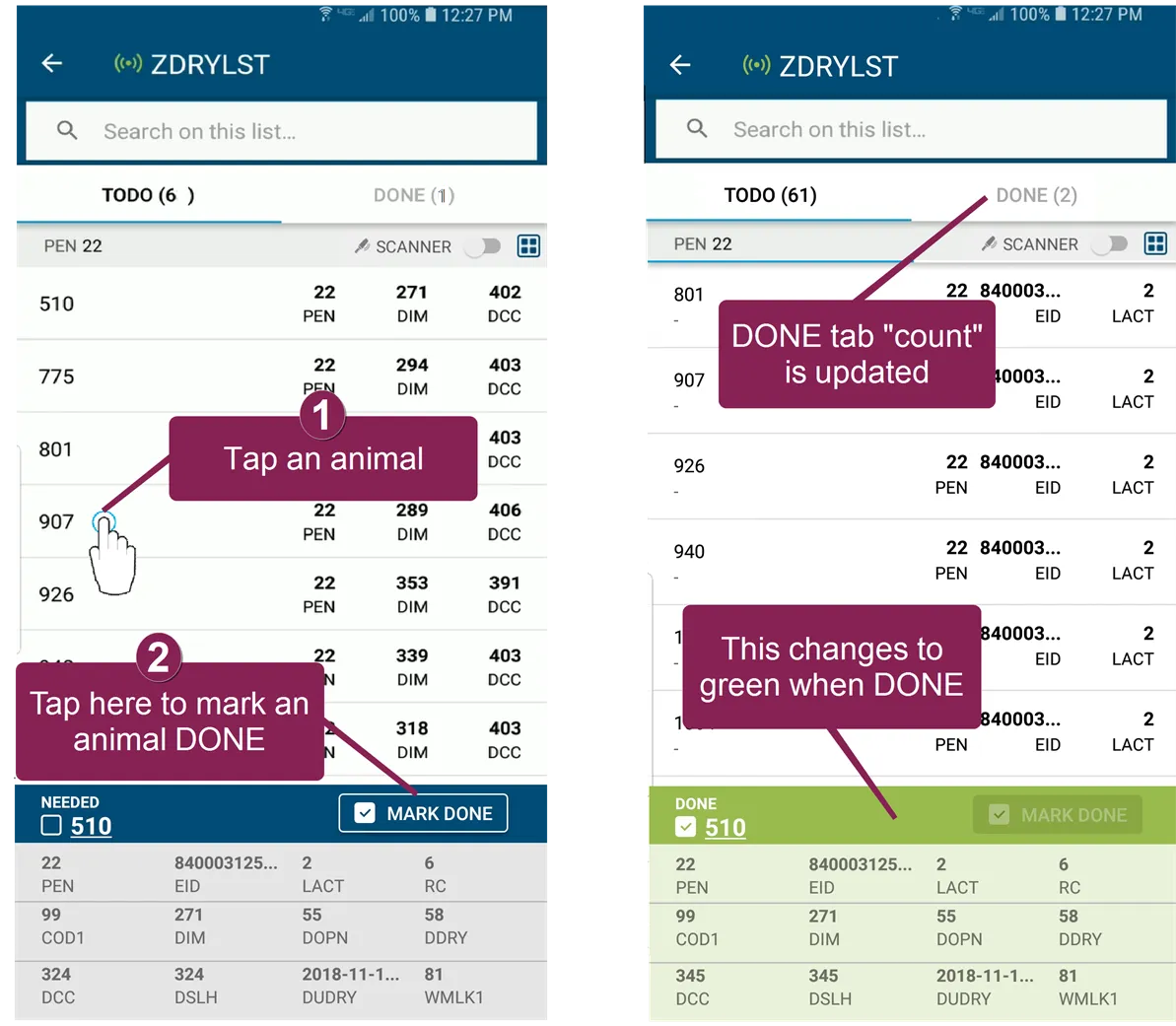
- In the TODO tab, you can tap any animal to determine if it is needed (indicated by the audible cue Need Her).
- If the animal is needed, tap the Mark Done box, which moves it to the DONE tab and plays the audible cue Done.
If you are using a scanner and a scanned animal is needed, the animal automatically moves to the DONE tab. See If you are using a scannerIf you are using a scanner below to learn more about using scanners with worklists.
Your options for processing animals vary depending on whether an animal has already been marked as DONE. Expand the following topics to learn more:
In the TODO tab, tap or scan any animal to determine if it is needed. Depending on the vetcode for the animal, the app plays a sound to indicate the action required.
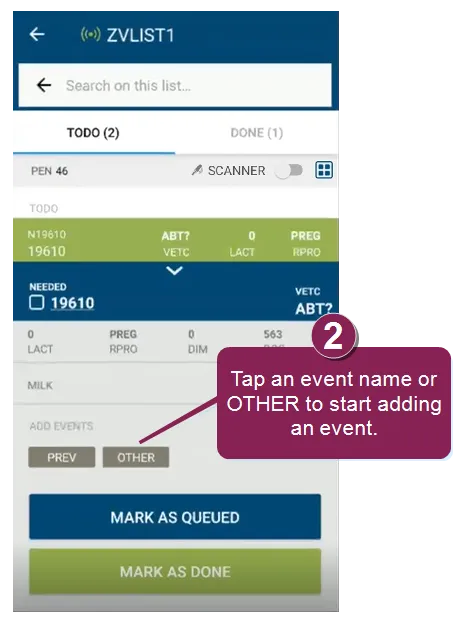
Tap an event name or OTHER to start adding an event. Depending on the vetcode or reason for the check, the list of preassigned events varies.
See Vetcodes for more information on assigning events to a vetcode.
Once at the event entry screen, enter all required and optional event details.
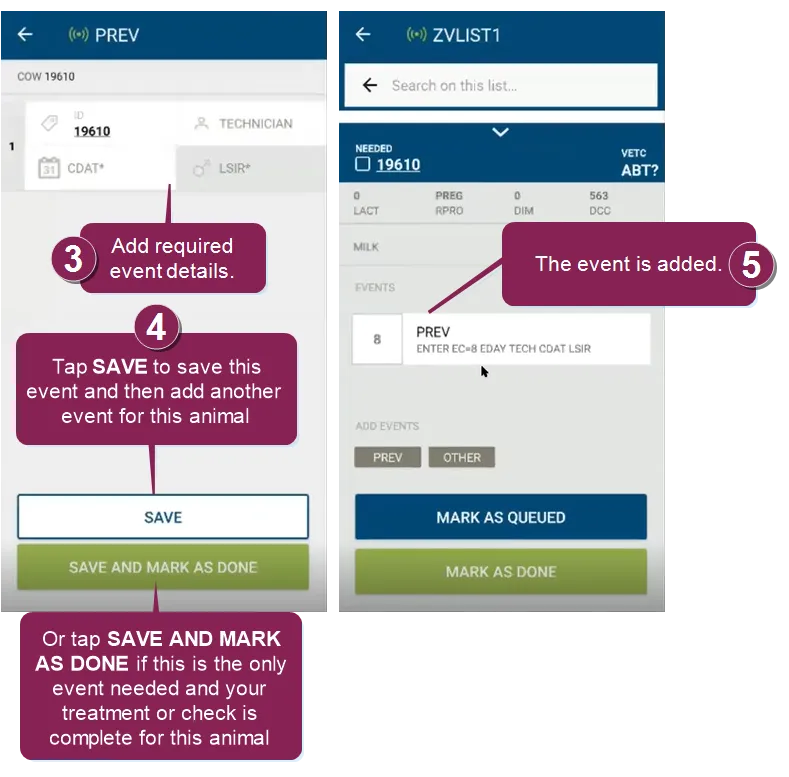
See Event EntryEvent Entry (v1) for more information on available events and entering their details.
Tap Save if you have additional events to add or Save and Mark as Done if this is the only event needed and your check is complete for this animal.
The event is added for the animal. Add any additional events for the animal using the steps above. If you need to return to the animal at a later point or to make other changes, use the following options before marking the animal as Done:
- Mark an Animal as QueuedMark an Animal as Queued
- Edit an EventEdit an Event
- Delete an EventDelete an Event
Mark the animal DONE.
After events are added for the animal, tap the Mark as Done box, which moves it to the DONE tab and plays the audible cue Done. You can also mark the animal as DONE directly from the event entry screen by selecting Save and Mark as Done.
When you set an animal to DONE, the animal moves from the TODO tab to DONE, and the app sends the updated status to PULSE. The app captures the following details:
- Entry date/time
- Entry method (TAPPED and SCANNED are the only methods available in the current release)
- Event(s) (for vet lists and hospital lists only)
- Pen adjustments/corrections
NOTE: You can only complete the following steps before an animal is marked as DONE.
Tap Mark as Queued if you require more time or additional information to complete the animal check or to gather diagnosis details.
This changes the animal status to queued, and it remains in the QUEUED section of the TODO tab.
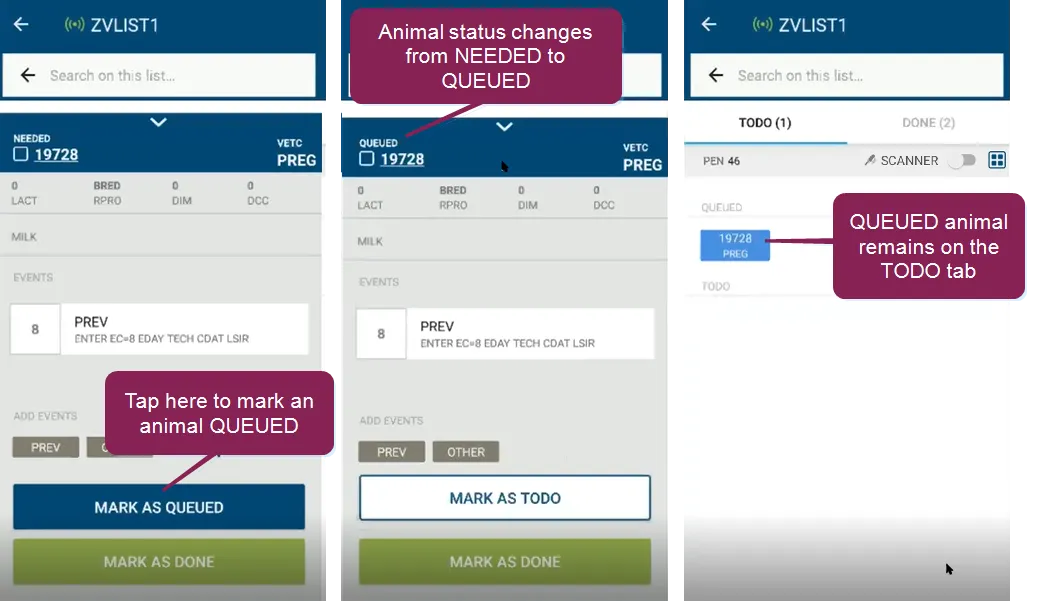
NOTE: Queued animals remain on the TODO tab on your device until you are ready to mark them as done. Other users working on the same worklist will not see the animals queued on your device and may process them independently from another device. Platform records only the first time an animal is processed, and displays an error message if you attempt to process an animal a second time. See View Animal Status in the Mobile AppView Animal Status in the Mobile App (v1) for more information.
NOTE: You can only complete the following steps before an animal is marked as DONE.
To edit an event, tap the event. Make any changes on the event entry screen and tap Save.
NOTE: You can only complete the following steps before an animal is marked as DONE.
To delete an event, swipe to the left and tap Remove. Tap Yes to confirm the deletion.
NOTE: You can only complete the following steps after an animal is marked as DONE.
If you mistakenly mark an animal as DONE and have not processed the update yet, follow these steps to undo it:
Open the list in the mobile app, select the DONE tab, and locate the animal you want to undo. Follow either of these steps:
- Tap the animal and then choose UNDO.
Swipe left on the animal.
Tap Yes to confirm the UNDO.
Once you confirm, the app moves the animal back to the TODO tab.
NOTE: Only animals with the status RECEIVED can be undone. If an animal's status is PROCESSING or PROCESSED, the change has already been sent to PULSE and cannot be undone.
IMPORTANT: PULSE processes worklist updates for animals in the order they are completed, and the last event or status change supersedes previous animal updates. For instance, if an animal is on a vet list for a pregnancy check and is marked as PREG, and is later determined to have aborted, ABORT is the final status and animal details adjust accordingly.
Proceed to Send Worklist Updates to PULSE and DC305Send Worklist Updates to PULSE and DairyComp (v1) when done treating or checking animals on your worklist.
Need help with other tasks?
- Make sure the scanner is activated for the list (see example below).
- Scan animals to see if they are on a worklist. For to-do lists, animals automatically move to DONE tab if they are scanned and on the list. Vet lists and hospital lists require you to mark animals as done after you finish processing them.
- If a scanned animal is not needed, the app plays an audible "not needed" buzz, and the animal number displays briefly in red at the bottom of the screen. Scan or tap another animal to continue.
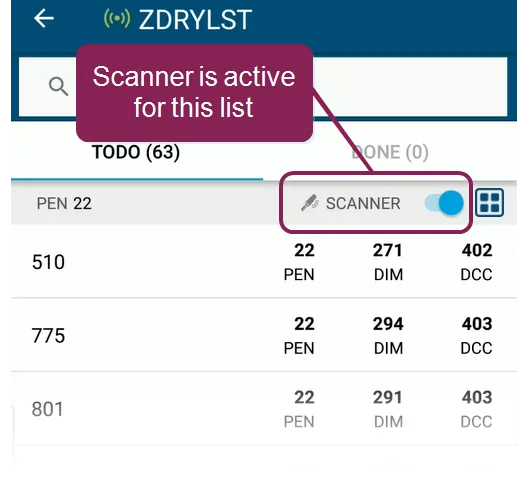
Note that the scanner connection switch is only available in the Android version of the app. iOS devices automatically connect to paired scanners, so instead of seeing the switch, you will simply see that the scanner status is either connected (blue) or disconnected (gray).
See Work with RFID ScannersWork with RFID Scanners (v1) for help using a scanner with the mobile app.
Any time you select an animal in a list, its details are displayed at the bottom of the page.
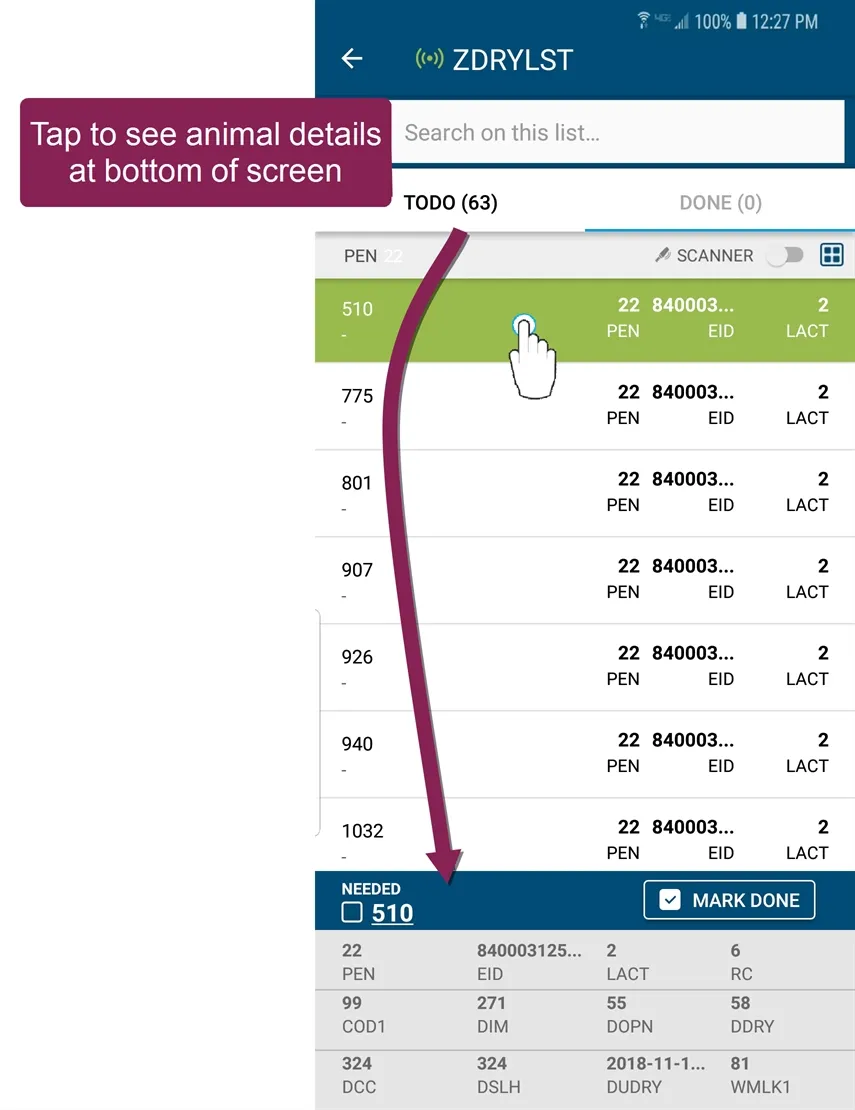
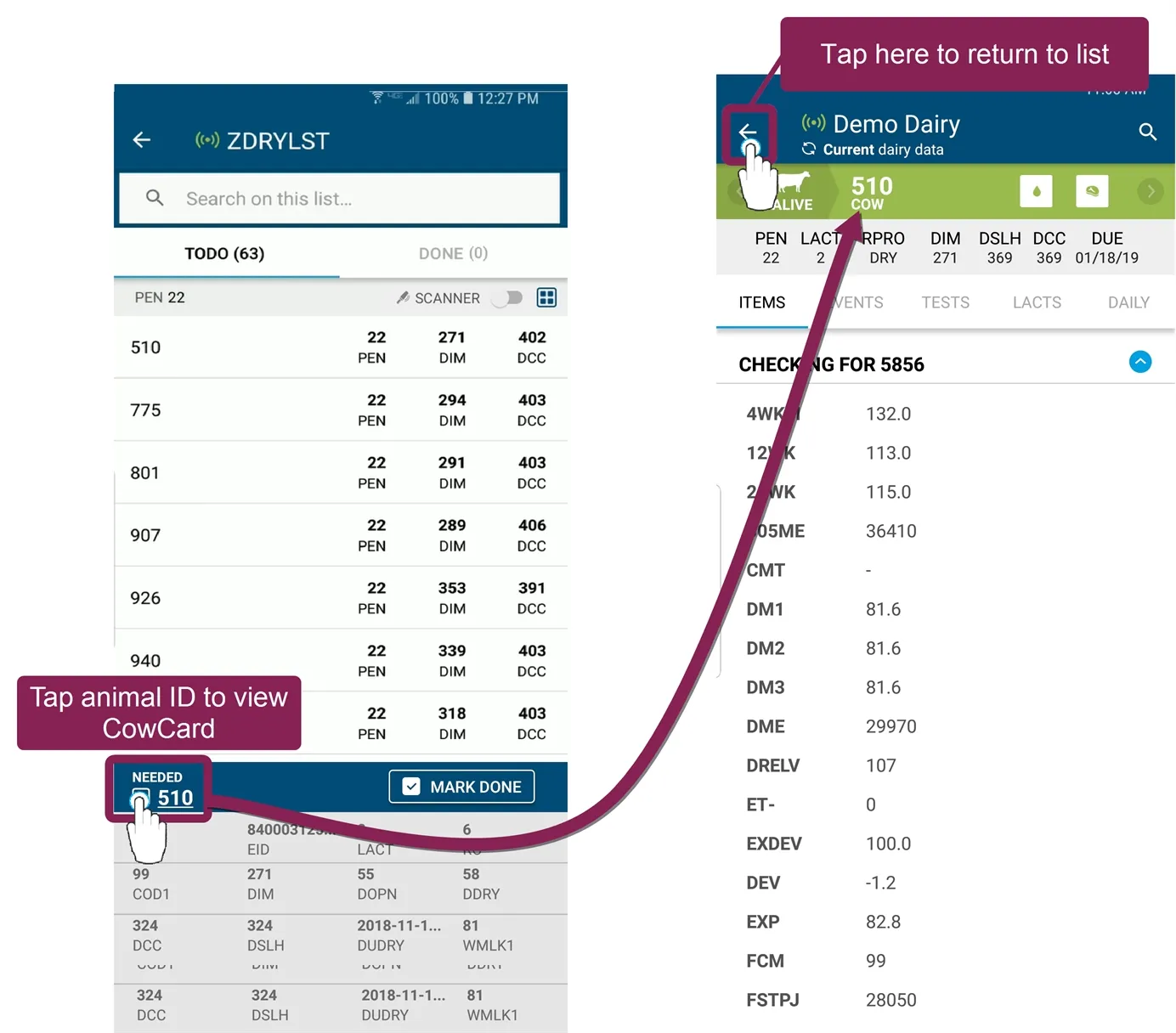
When you set an animal to DONE, the animal moves from the TODO tab to DONE, and the app sends the updated status to PULSE. The app captures the following details:
- Entry date/time
- Entry method (TAPPED and SCANNED are the only methods available in the current release)
- Event(s) (for vet lists and hospital lists only)
- Pen adjustments/corrections
The DONE tab lists all animals that have already been marked DONE and are either waiting to be processed or are already complete.
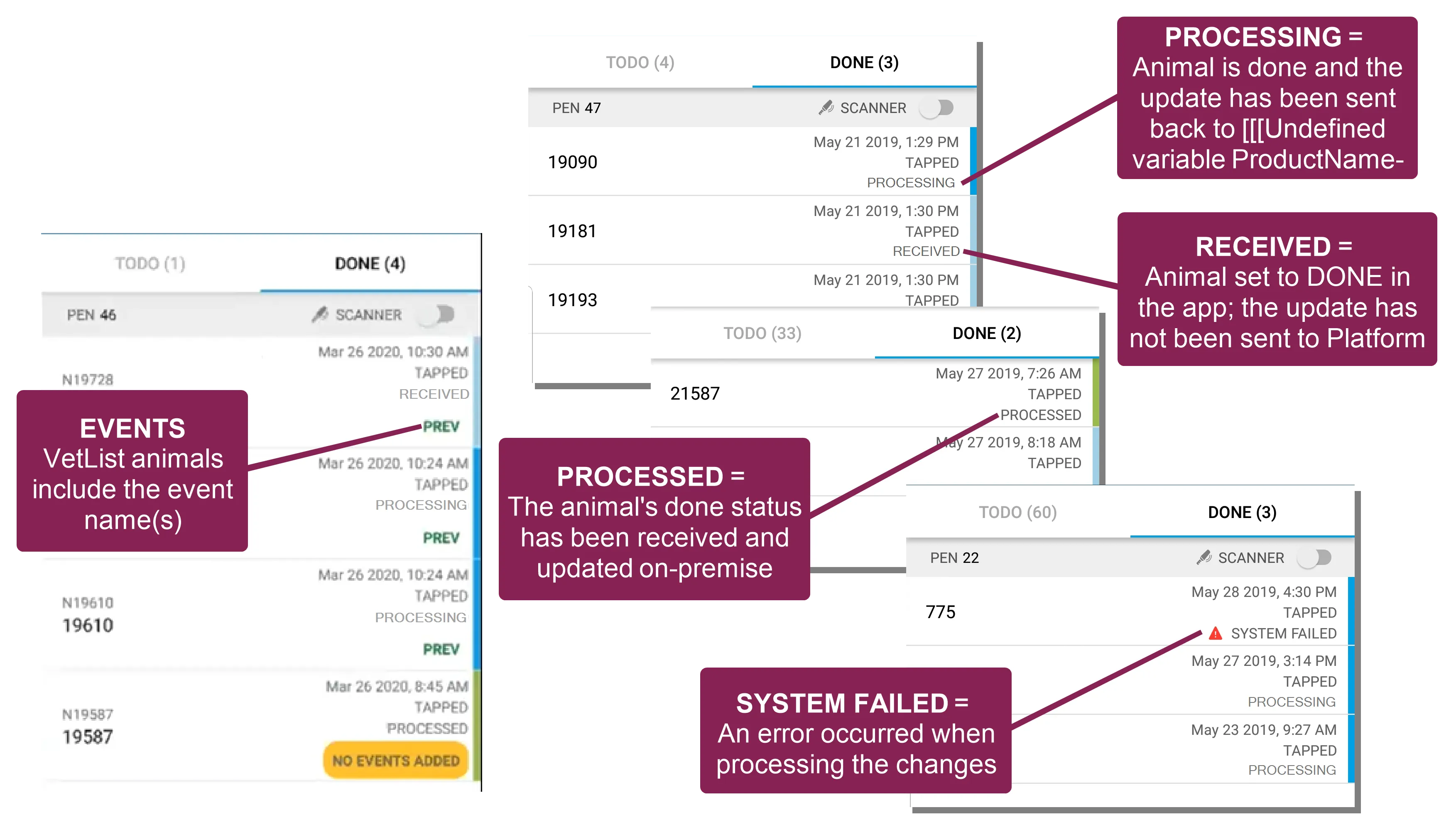
For animals that are in RECEIVED state, see the instructions to process your changes above for each list type.
If you accidentally mark an animal as DONE, see the instructions to undo the changeundo the change below.
If you mistakenly mark an animal as DONE and have not processed the update yet, follow these steps to undo it:
Open the list in the mobile app, select the DONE tab, and locate the animal you want to undo. Follow either of these steps:
- Tap the animal and then choose UNDO.
Swipe left on the animal.
Tap Yes to confirm the UNDO.
Once you confirm, the app moves the animal back to the TODO tab.
NOTE: Only animals with the status RECEIVED can be undone. If an animal's status is PROCESSING or PROCESSED, the change has already been sent to PULSE and cannot be undone.
Sometimes animals accidentally end up in the wrong pen, and other times, animals are correctly placed into a new pen but their CowCard has not yet been updated to track the pen move. For these reasons, PULSE mobile app allows you to conveniently make pen corrections when processing animals in a worklist.
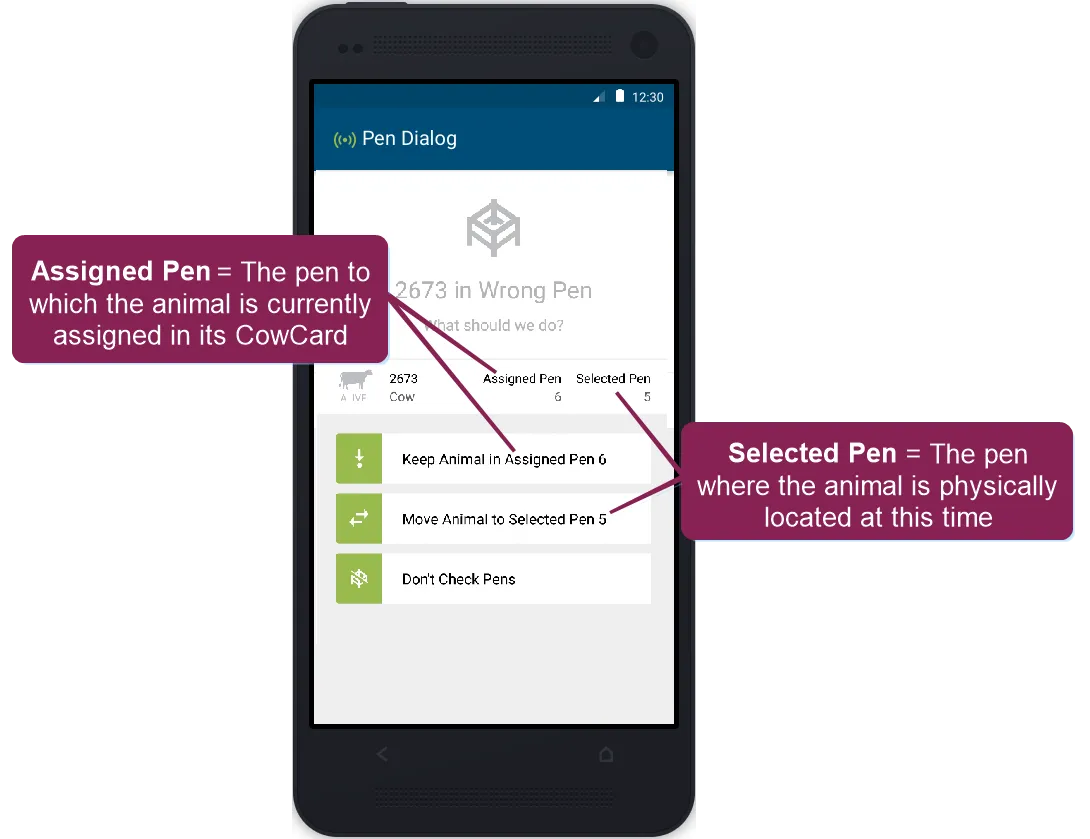
For more information on your pen correction options, see Make Pen Corrections (v1)Make Pen Corrections (v1).
Be aware that multiple users may be processing changes and sending them back to DairyComp many times throughout the day. Some workers may choose to process changes at the end of the day after finishing all list updates. Some may choose to process changes after updating a few animals at a time. Some may not be able to send their processed updates back on‑premise because they do not have an active WiFi or data connection.
For these reasons, it's a good idea to use the Refresh Lists option when you can.
To refresh your lists, your mobile device must have an active internet connection. To make sure you have all of the latest updates, consider refreshing your lists before going out to the field to work on them, as well as any convenient time afterward, when you have an active WiFi or data connection.
Follow these steps to refresh your lists.
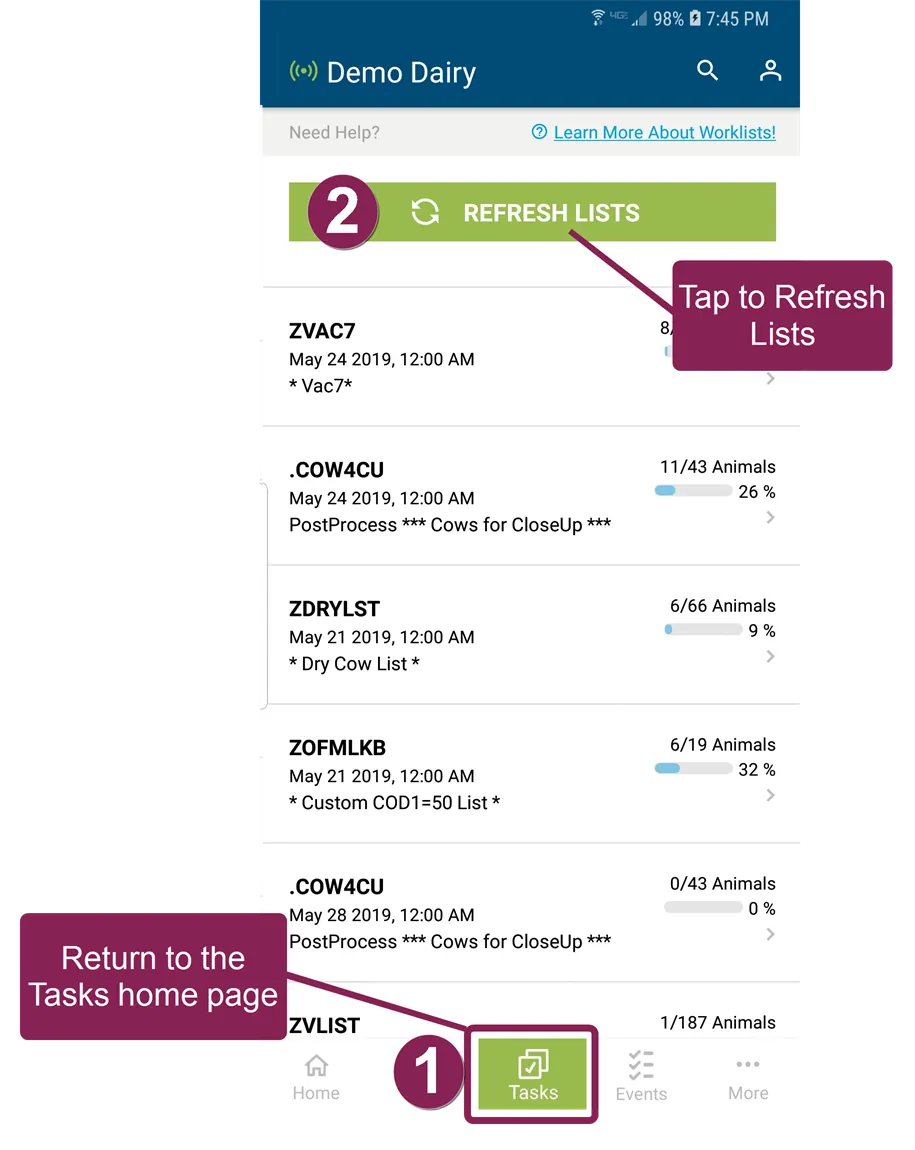
- Return to the Tasks home page.
- Tap the green Refresh Lists button.
- Permissions required to use Platform WorklistsPermissions required to use Platform Worklists (v1)
- Make Pen CorrectionsMake Pen Corrections (v1)