View Tasks & Worklists in the VAS Platform Mobile App
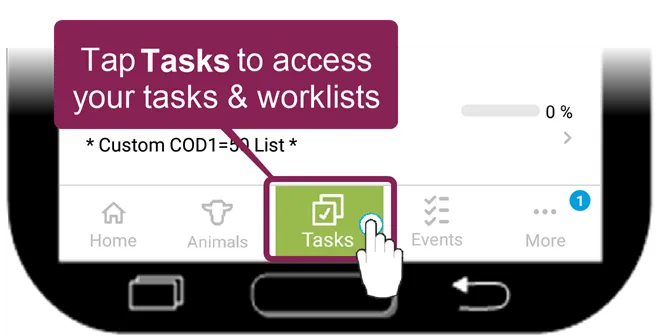
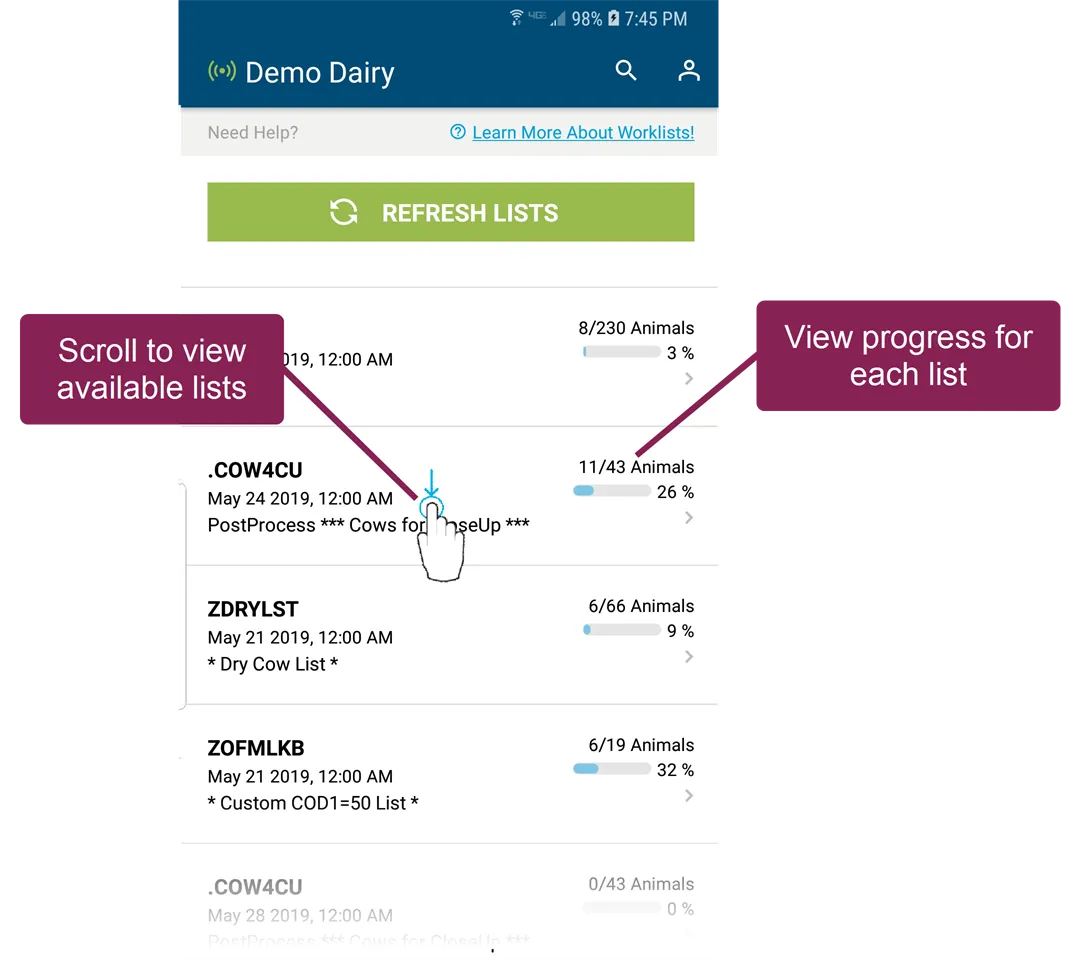
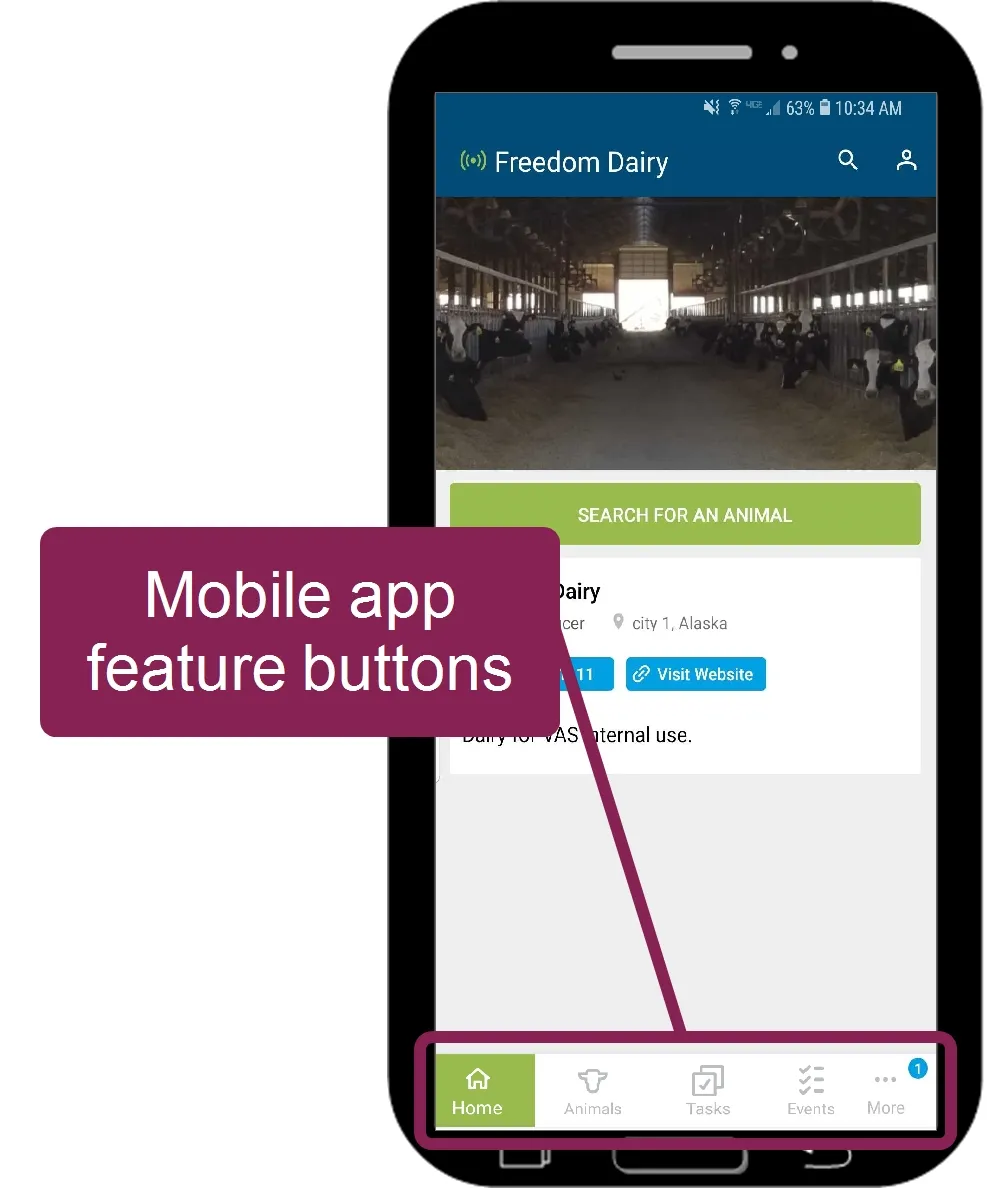
Open the Tasks feature in the mobile app to find all available worklists. Each list type has a unique icon, and the progress bars show each worklist's current status.
| Event List |
|---|---|
| Hospital List |
| To-Do List |
| |
| Open Tasks List (MyDC dairies only) |


Follow the guidelines below when working with mobile lists:
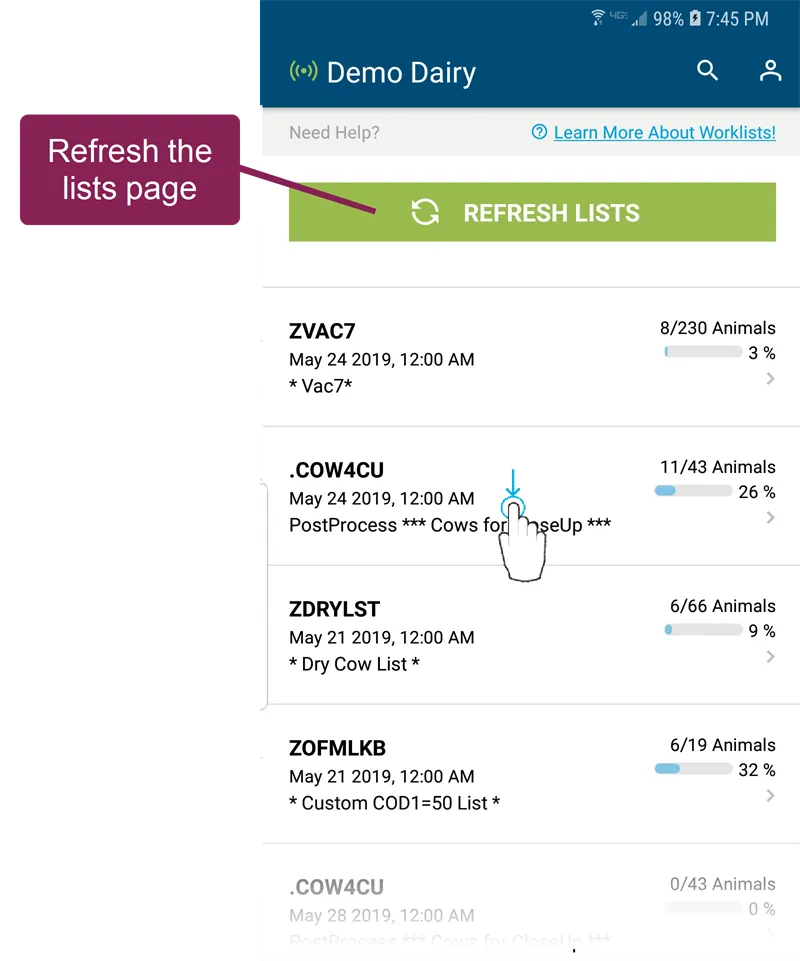
- Get worklist updates from PULSE: You can tap the green Refresh Lists button to view updates that other users may have processed from other devices.
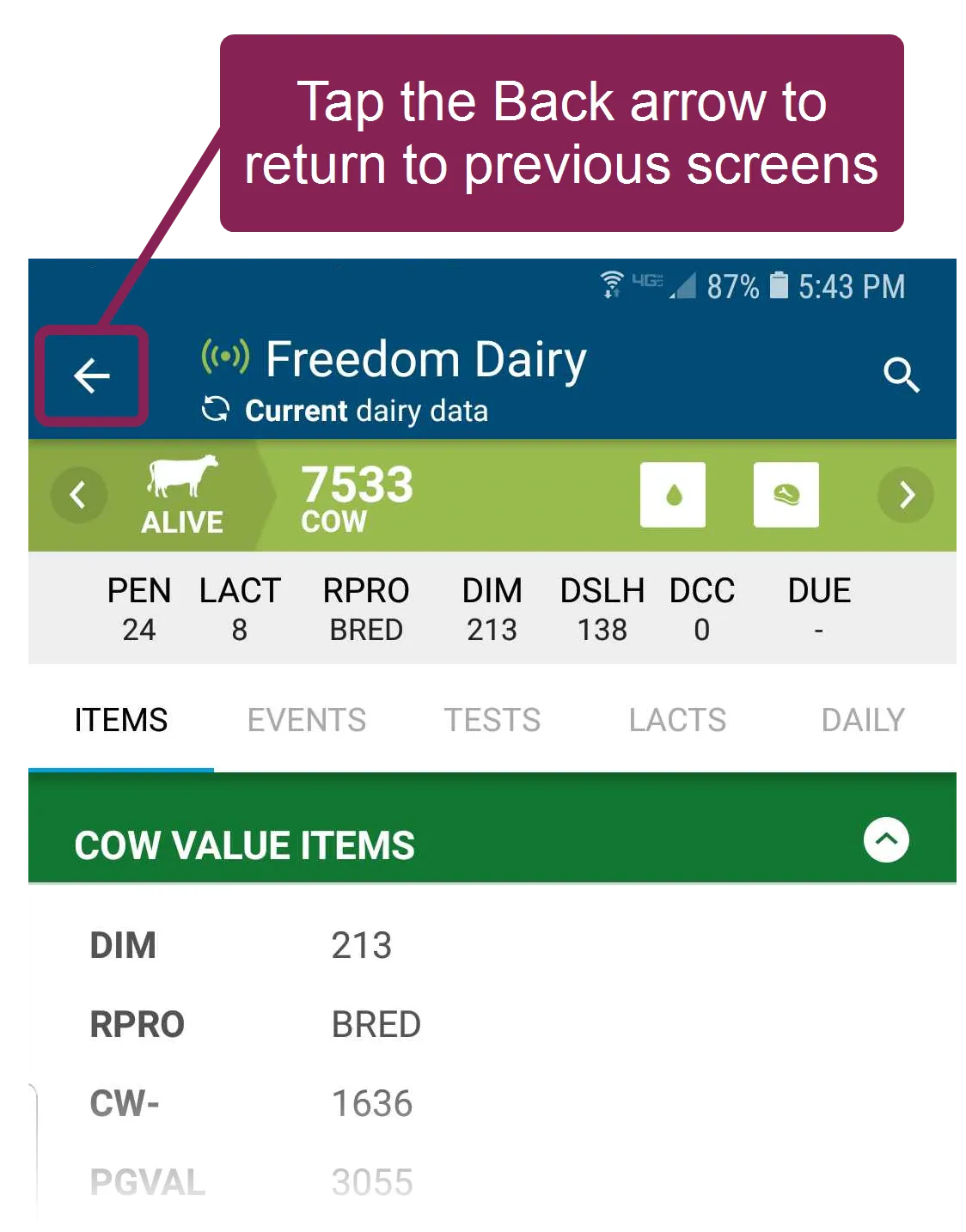
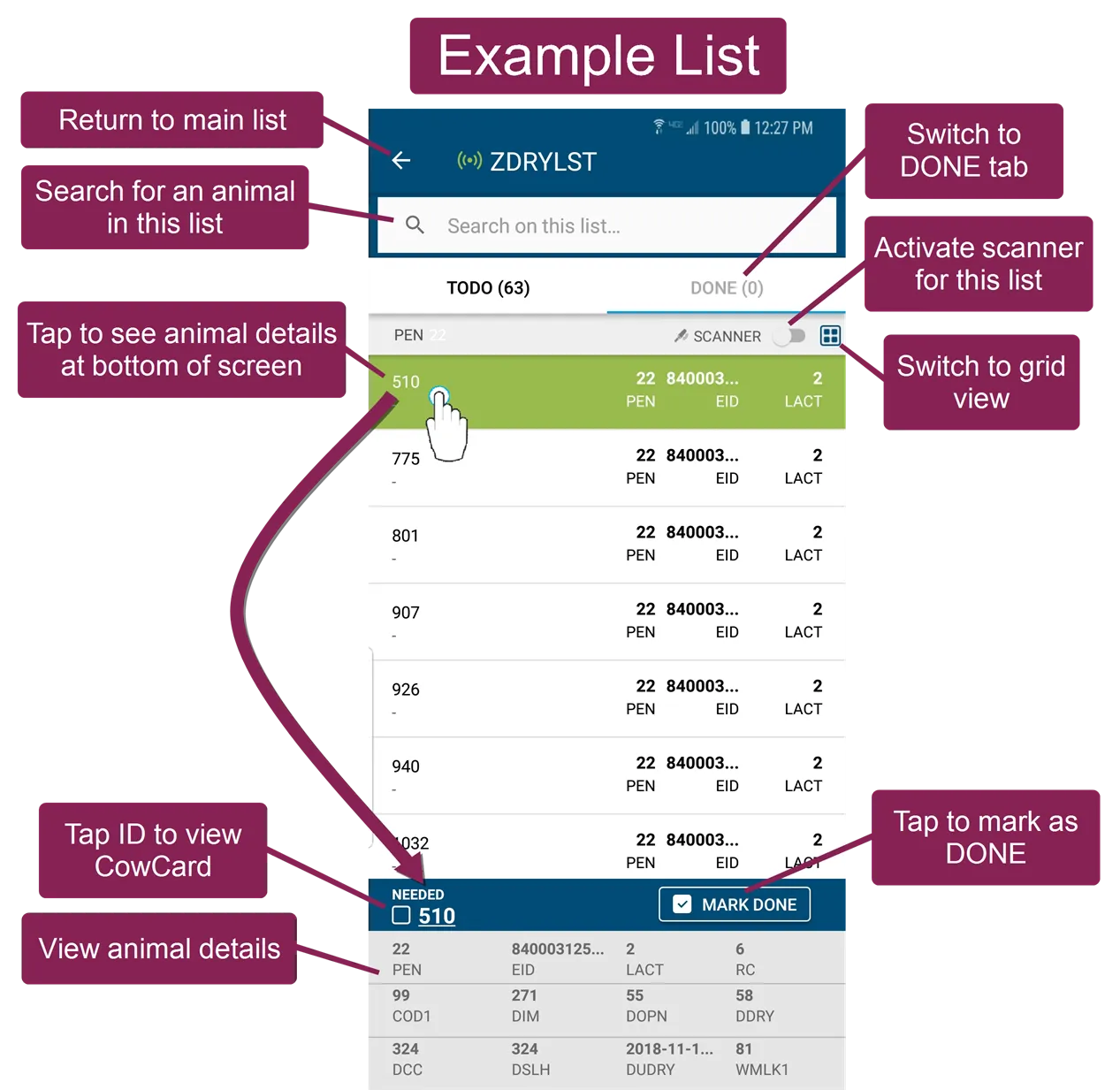
- Send animal updates to PULSE: To process animals, open a list and select a pen. From there, you can search for animals and process their tasks. You can also tap on an animal to view its details at the bottom of the screen.
- View animals by pen number: In a mobile worklist, the animals are displayed by the animal's pen number. You can view animals by each pen, or you can view all animals across all pens. To view animals across all pens, simply select the All Pens option.
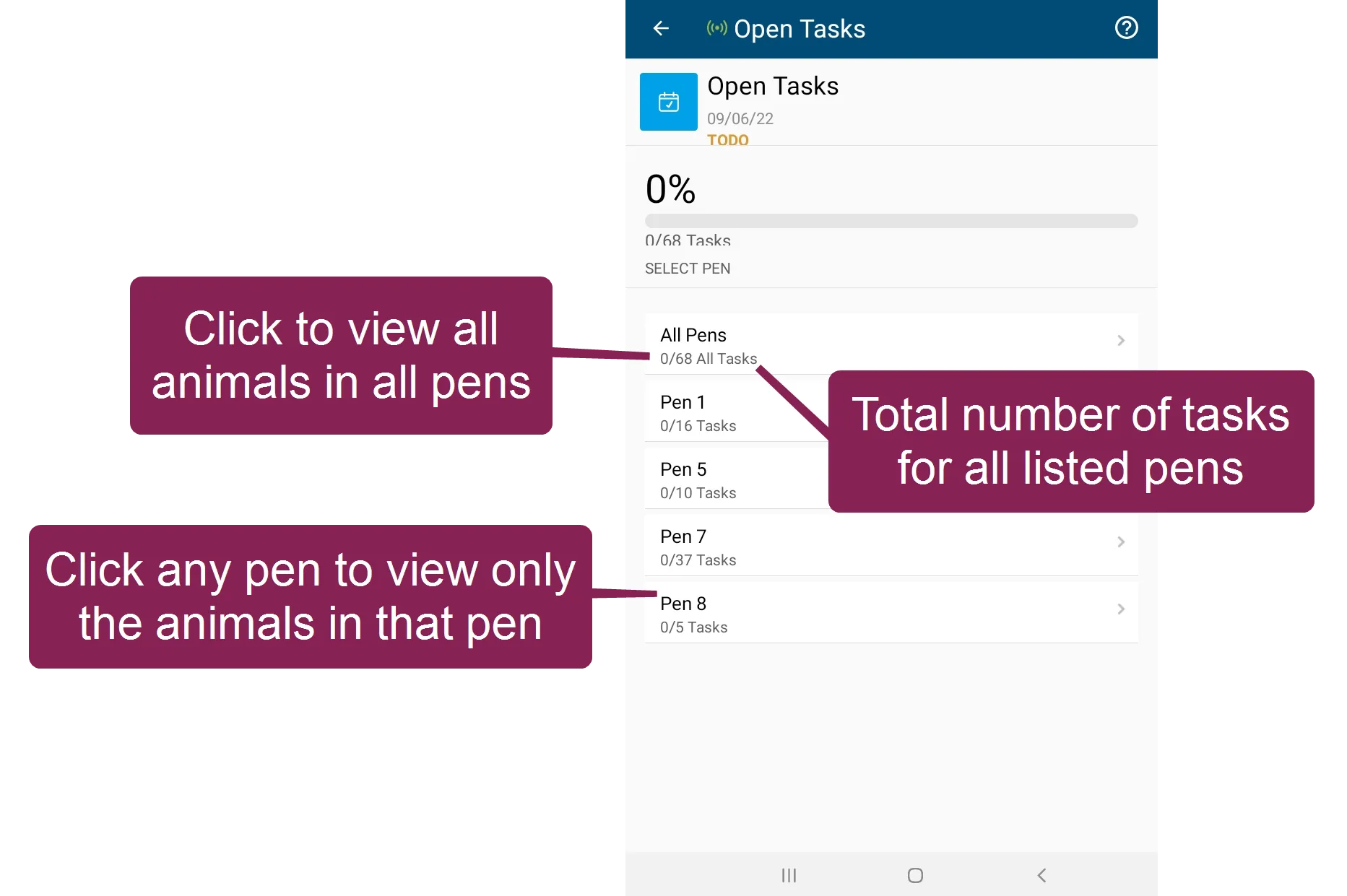
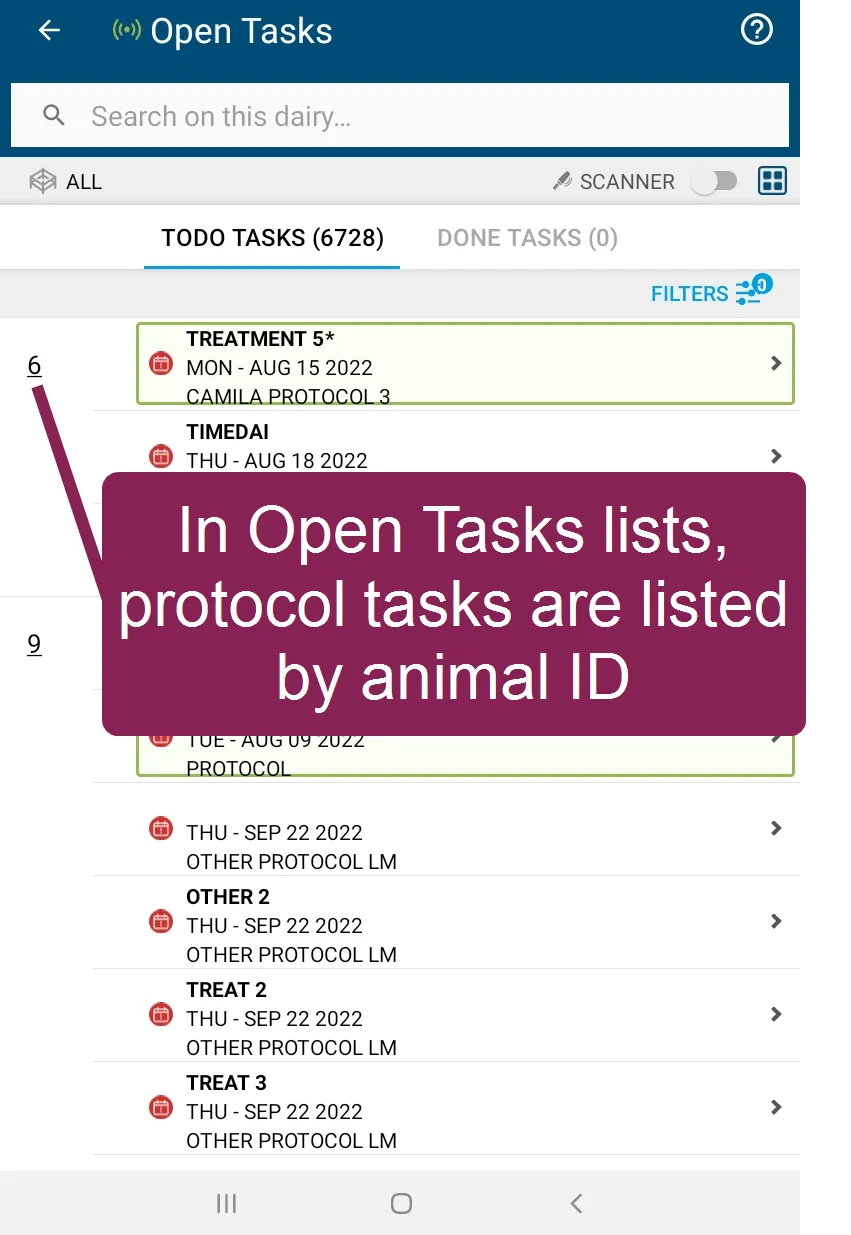
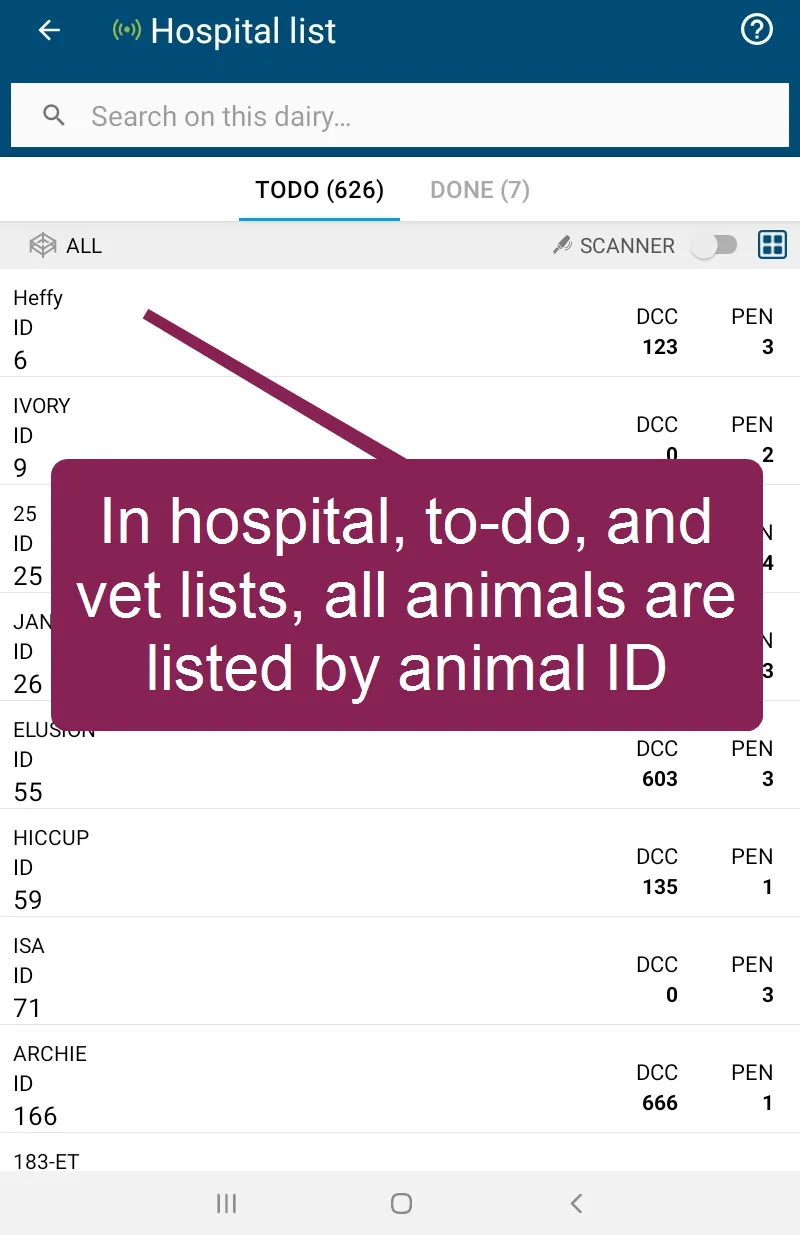
When you select All Pens for an Open Tasks list, the system lists all protocol tasks for all animals in all pens. When you select All Pens for a hospital list, to-do list, or vet list, the system lists all animals in all pens that are included on the list.
- Switch from list view to grid view: When you select a pen, the animals are displayed in list view by default. Tap the Grid button
 to see the list of animals in a grid view.
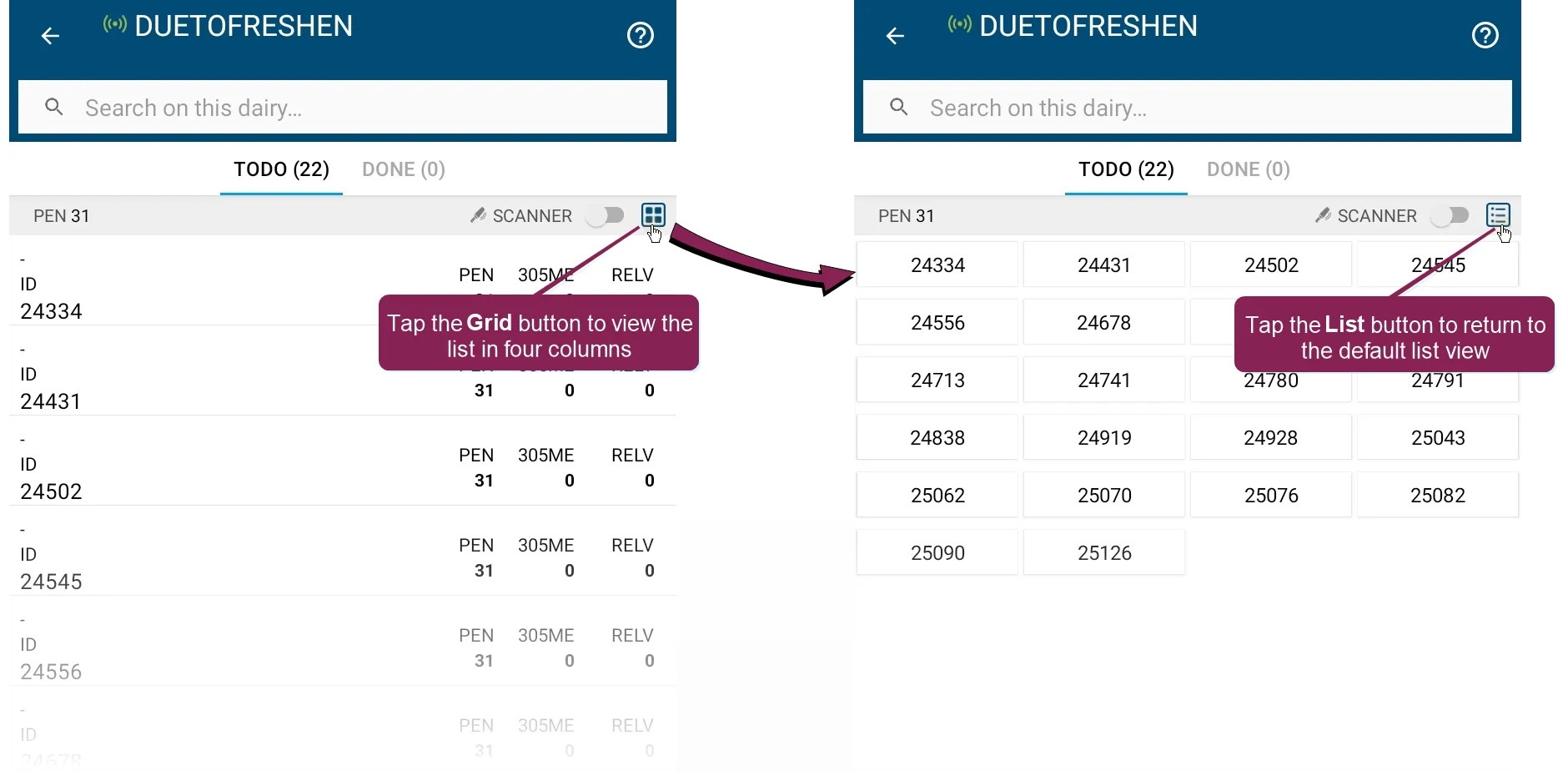
When you're in grid view, tap an animal's identifier to process the animal's assigned tasks. To learn more about processing tasks in a mobile worklist, see Complete TasksComplete Tasks (v1).
IMPORTANT: If you do not see a specific worklist in the mobile app, review the information in Send Worklists from DairyComp to PULSE (DCU only) to ensure that you are generating the list and, if necessary, sending it to PULSE.