Use a Scanner with Android Devices
2 min
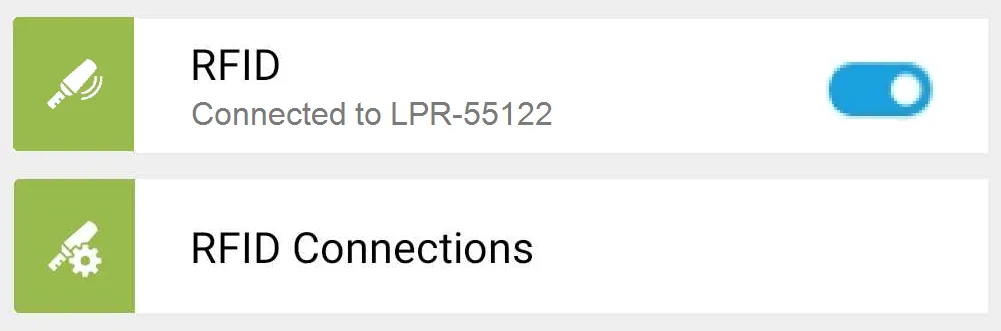
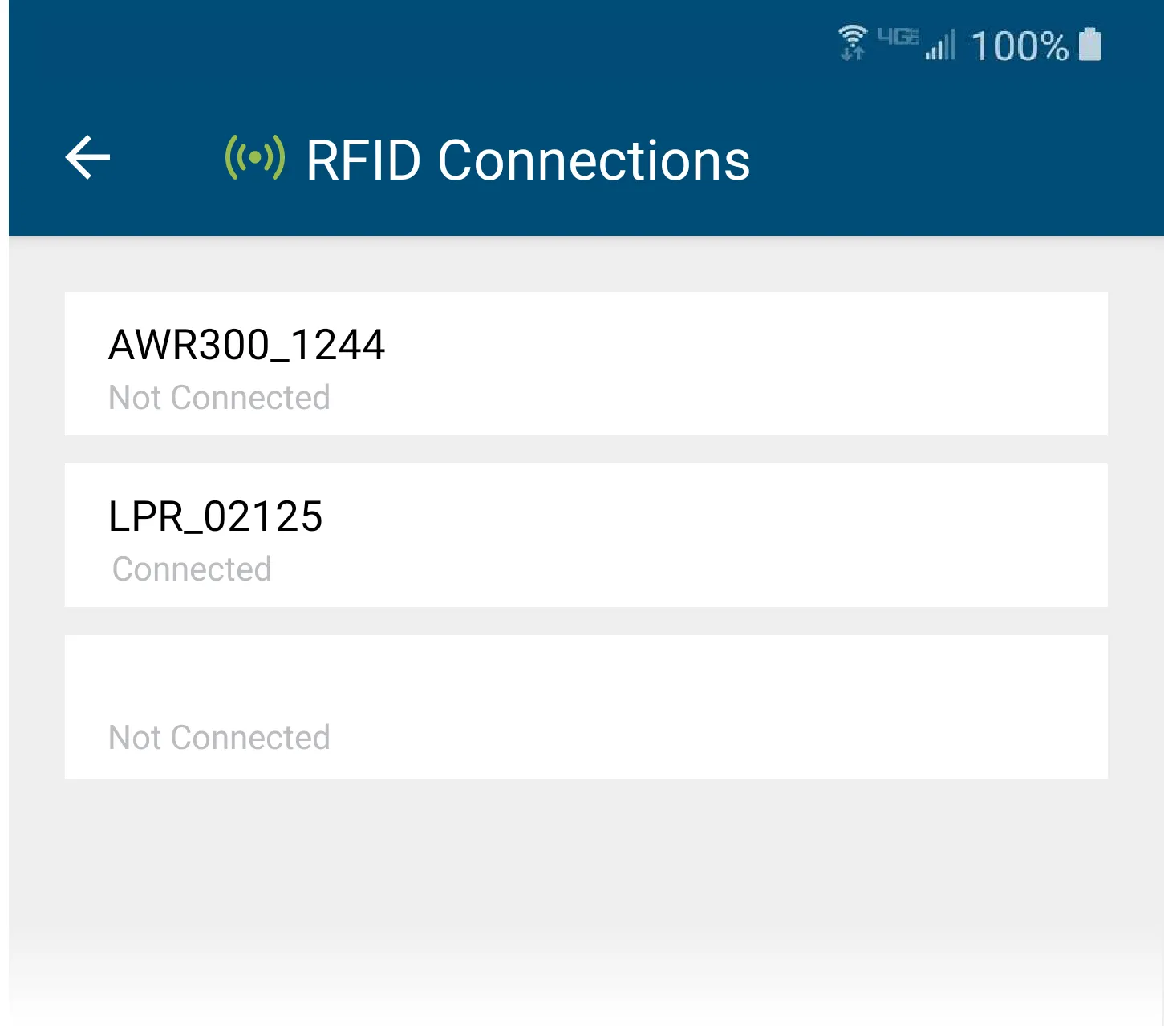
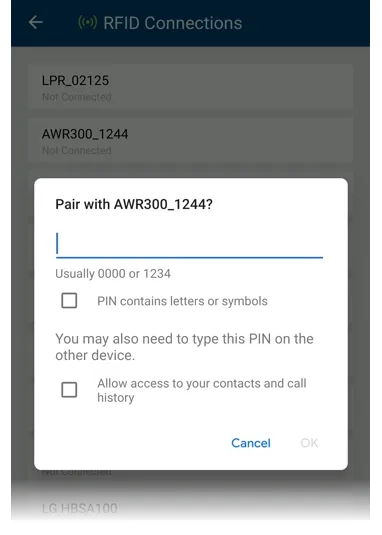
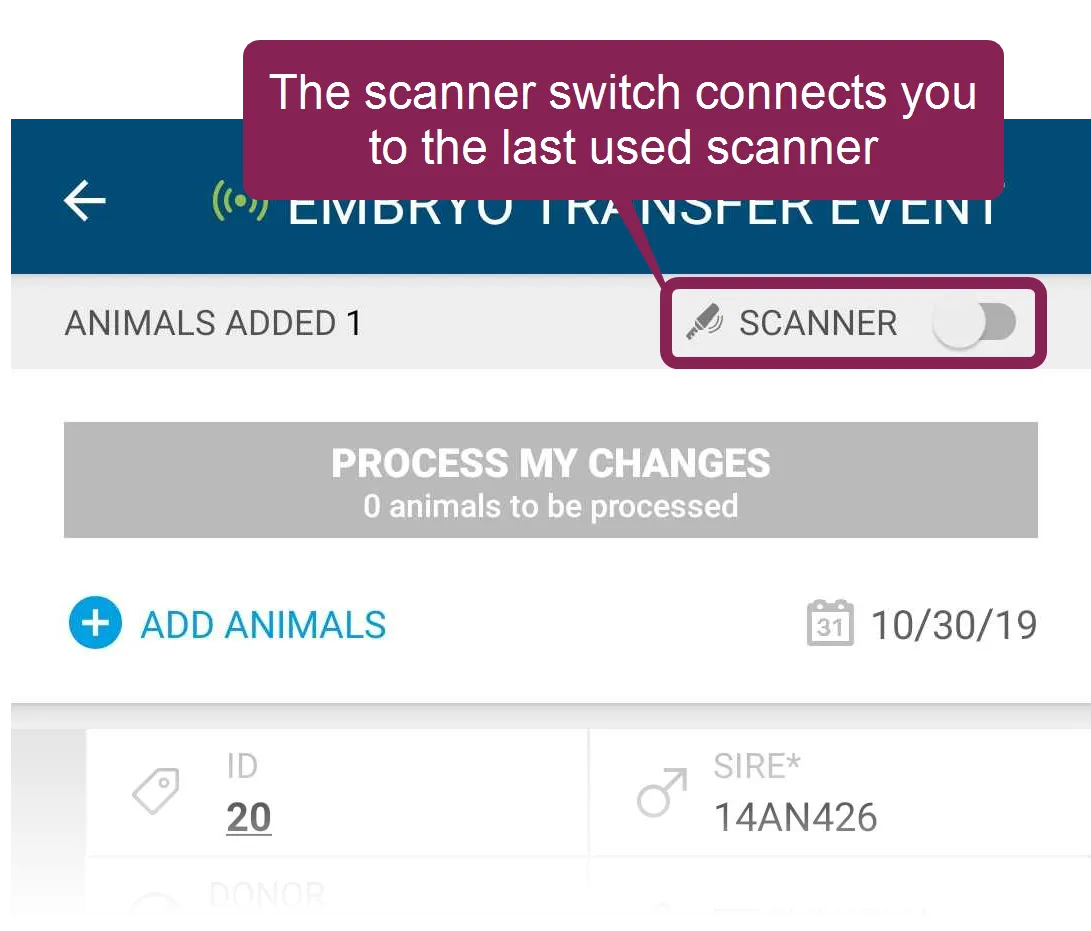
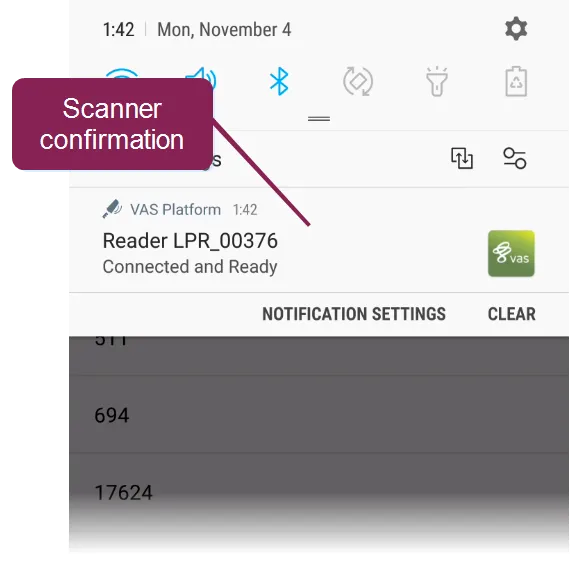
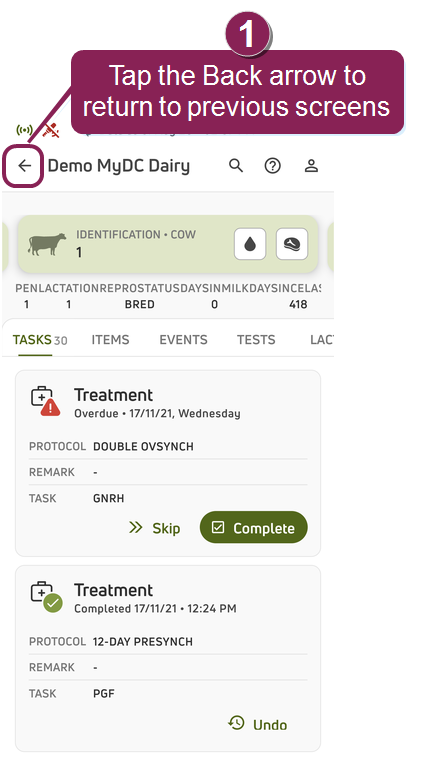
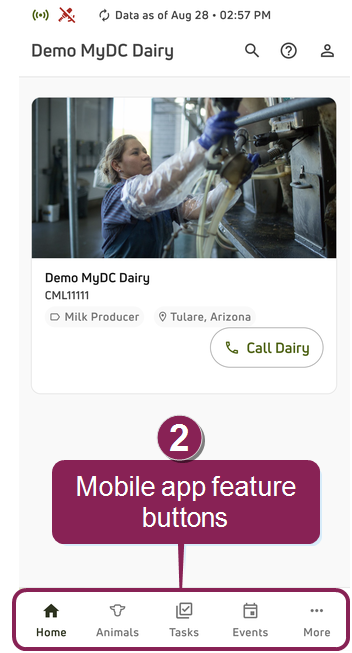
make sure that bluetooth is enabled both in your mobile device and the scanner, and then tap the more button in the mobile app to access the following scanner options rfid this field shows if a paired scanner is connected or disconnected if one is currently connected, the name of the connected scanner is displayed rfid connections this option allows you to connect to paired scanners, as well as pair with new ones this list displays all available scanners, even if they are not currently paired or connected if the scanner you want to use is already paired with your device but shows a status of not connected , make sure that the scanner is powered on and that the bluetooth connection is enabled in both your mobile device and the scanner for any scanner that shows a status of connected , you can use it to look up animals in the mobile app and process them in your dairy's tasks & worklists docid\ uupc6krkxurknojf0fyvb and events docid\ fx i5bscdawaj1033pehq show me how to pair a new scanner in rfid connections when using the rfid connections menu to pair with available scanners, simply tap any scanner in the list that is not connected if the scanner has not paired with your device yet, you may be prompted to enter a pin to complete the pairing if your dairy has multiple scanners and wands, you can pair each of them with your device and then select the one you want to use within the vas pulse platform mobile app look for the scanner shortcut! in the android version of the mobile app, features that support scanners, such as tasks & worklists docid\ uupc6krkxurknojf0fyvb and events docid\ fx i5bscdawaj1033pehq , offer a shortcut for using scanners toggle the scanner connection switch on or off to connect or disconnect from a paired scanner when you toggle this switch on, the mobile app detects which scanner was last used under your account, and it connects you to it once the scanner finishes connecting, the mobile app displays a pop up message to confirm that it is ready to use note that in the ios version of the mobile app, the scanner indicator is not a switch that you can toggle instead, it is a status indicator that shows green when a scanner is connected and gray when it is not i don't see the more button how do i find it? follow the steps below if you do not see the more button at the bottom of your screen tap the back arrow at the top left of the screen until you return to one of the main feature screens from there, you'll find the feature buttons at the bottom of the screen