Switch RS420 Pairing Between Android and iOS
2 min
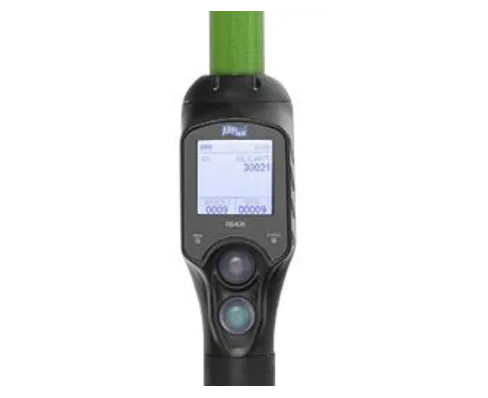
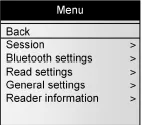
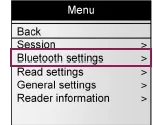
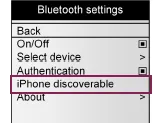
if your dairy uses only ios devices, or a variety of android and ios equipment, you must update the wand configuration to pair it with ios devices you will then also need to update the configuration again if you want to switch back to pairing it with android devices follow the instructions below to pair the rs420 with an ios device and then (if necessary) switch it back to an android device pair rs420 with an ios device to reconfigure the rs420 scanner to be used with ios devices, you'll first need to see if menu access is enabled if it is not, use the allflex tag manager client to change the wand menu access setting then, proceed to setting the scanner to be discoverable for connection test for menu access on the rs420 & change if needed press and hold the top (black) button on the scanner for 3 seconds to test for menu access if nothing happens, continue to step 2 docid\ m20s5csxa74hkqt0ye0cc or, jump to manually connect the rs420 to an ios device docid\ m20s5csxa74hkqt0ye0cc if the menu displays start with the scanner disconnected from your computer if the scanner has an active bluetooth connection, verify that the scanner displays an s next to the bluetooth symbol to indicate it is paired as a slave this is the required setting for android devices open the allflex eid tag manager client if necessary, download it from the allflex website http //www allflexusa com/support/downloads/ connect the scanner to your computer via usb, a serial port, or bluetooth the client notifies you when a connection is established for options on setting your connection, click the connect button click tools > reader config > menu access and change the setting to enabled click apply settings disconnect the scanner from the computer manually connect the rs420 to an ios device press and hold the top (black) button on the scanner for 3 seconds to access the menu use the bottom (green) button to arrow down to bluetooth settings press the top button to select the option from the bluetooth settings, choose iphone discoverable the scanner discovers the ios device, and displays its name and the option to connect select yes from the ios device, view the bluetooth settings to see available devices the scanner displays as rs420 \<serial number> the scanner's serial number is located on the back of the scanner on the allflex decal tap the correct scanner if prompted for a password, use 1234 or 0000 the scanner displays a message to confirm the connection verify the connection on the ios device once the scanner and ios device are connected, the scanner displays an m next to the bluetooth symbol to indicate it is paired as master you should now be able to use the rs420 as a scanner with pulse mobile app on your ios device pair rs420 with an android device if you have reconfigured a scanner for use with an ios device and want to return it to android setup, you'll need to reconnect it to your android device see use a scanner with android devices docid\ t1 jjit 5 d1vm8dzpr48 for details to avoid having to reconfigure the rs420 when switching between device types, consider maintaining dedicated scanners for android and ios devices or, you may choose to purchase an additional, lower cost scanner for use with the less common device type