Use a Scanner with iOS (Apple) Devices
IMPORTANT: If you use RFID scanners, make sure your iOS device is compatible with your version of the mobile app:
- VAS Platform app: iOS versions 18.3.2 and lower. Do not upgrade to iOS versions 18.4.0 or greater and be sure to disable automatic updates in iOS settings.
- DC on Mobile (v2): All recent iOS versions, including 18.4.0 and above.
The first time you connect a scanner to an iOS device, go to your Bluetooth settings to connect it. After the first connection, your device will recognize the scanner and automatically pair and connect (as long as Bluetooth is enabled).
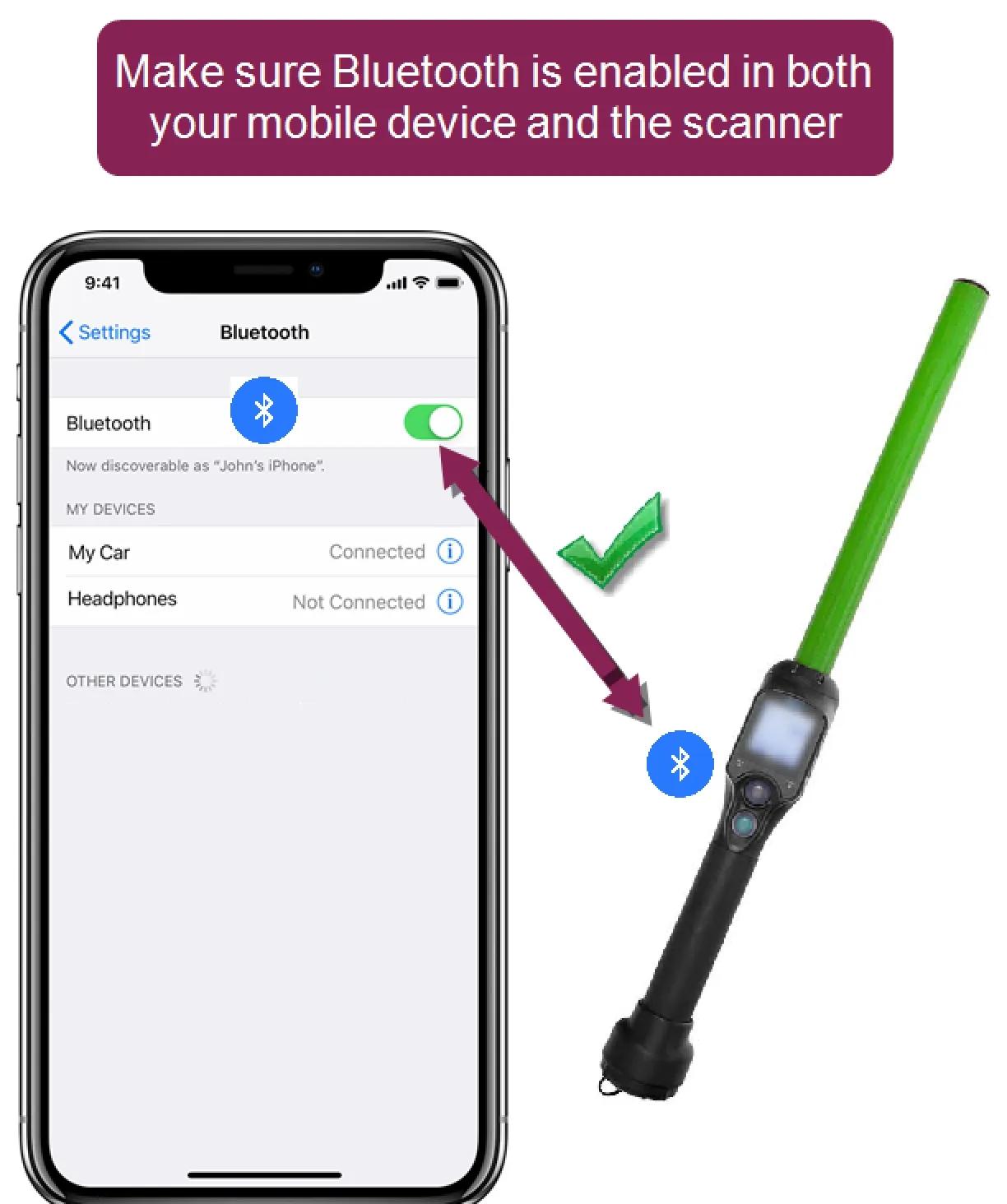
TIP: If you turn on Airplane Mode on your iOS device, Bluetooth is turned off automatically. You can turn Bluetooth back on in settings, and it will stay on until you turn it off or toggle Airplane Mode off and on again.
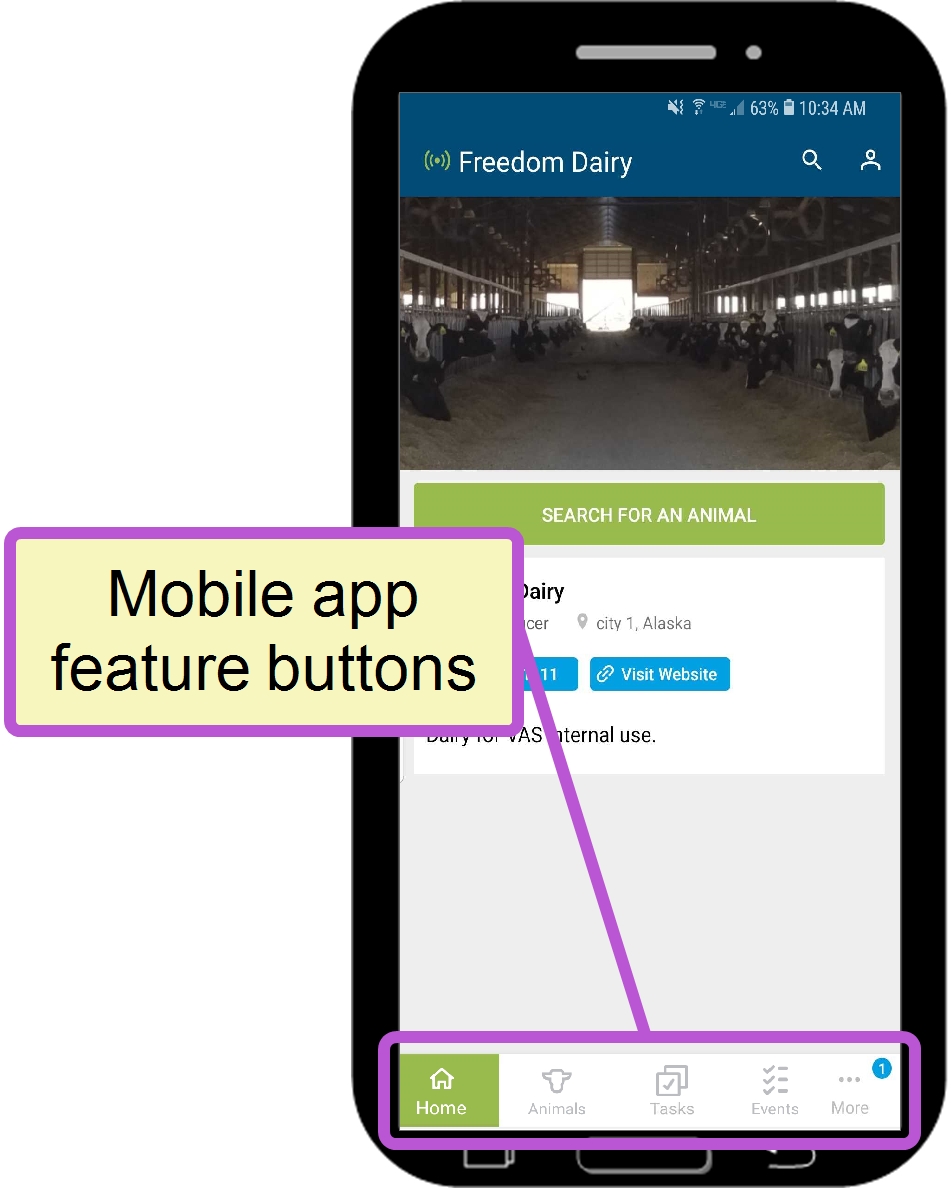
Once the scanner is paired with your device, it can scan animals in the mobile app. Tap the More button to check your scanner's connection status.

RFID: This field shows if a paired scanner is connected  or disconnected
  . If one is currently connected, the name of the connected scanner is displayed.