Connect an Allflex Scanner
2 min
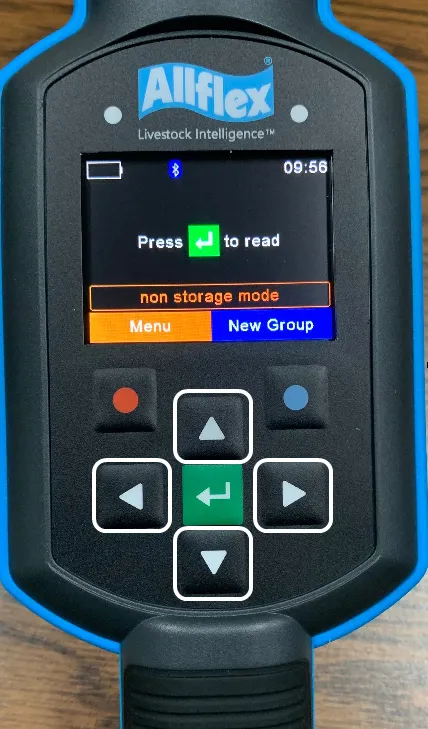
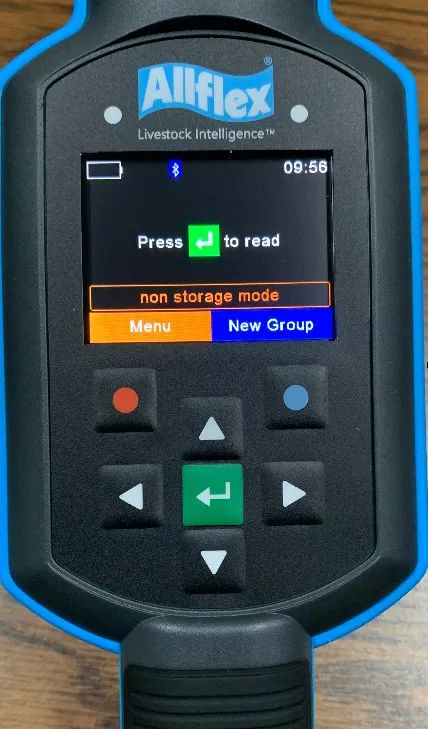
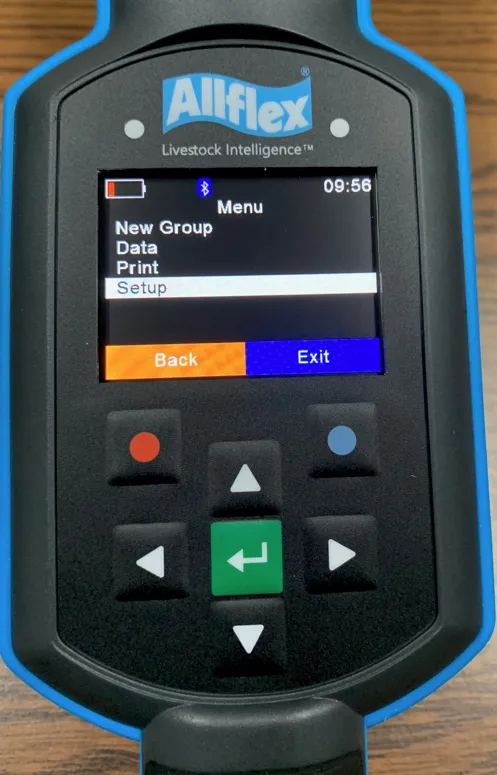
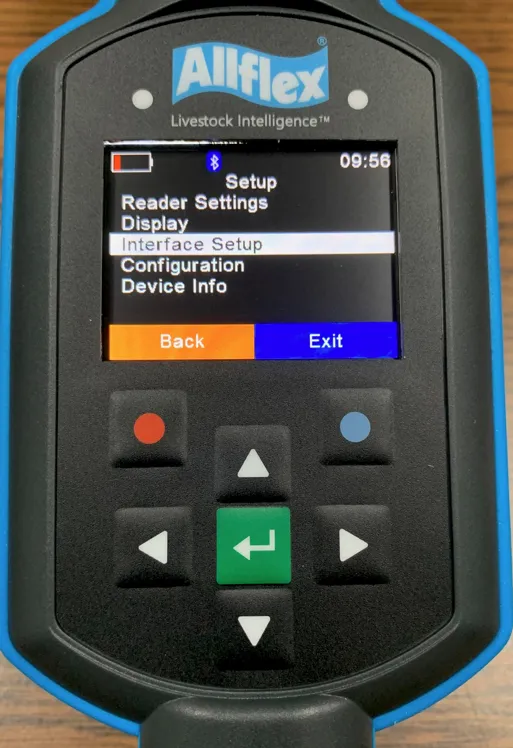
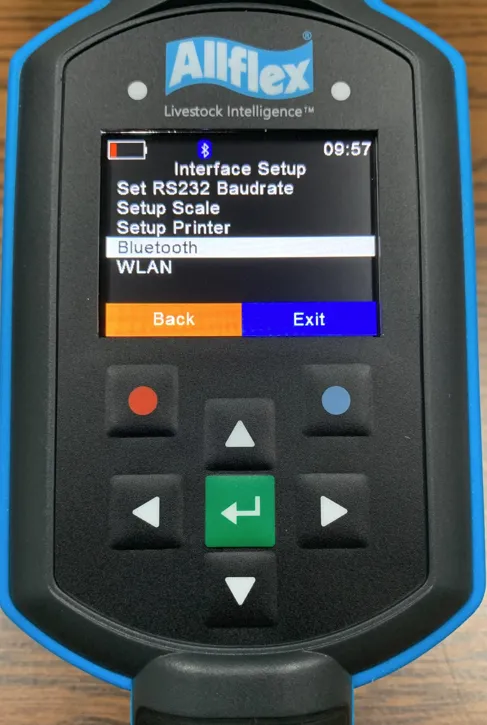
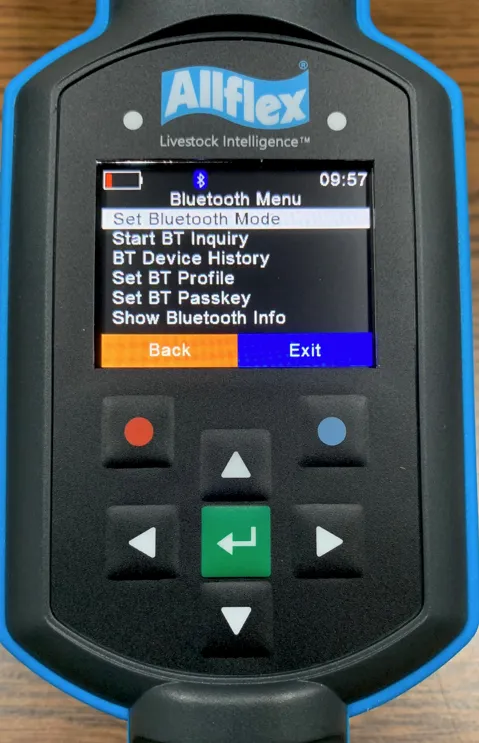
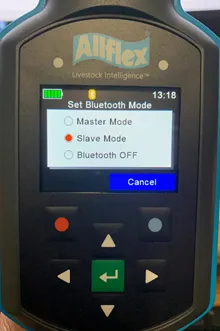
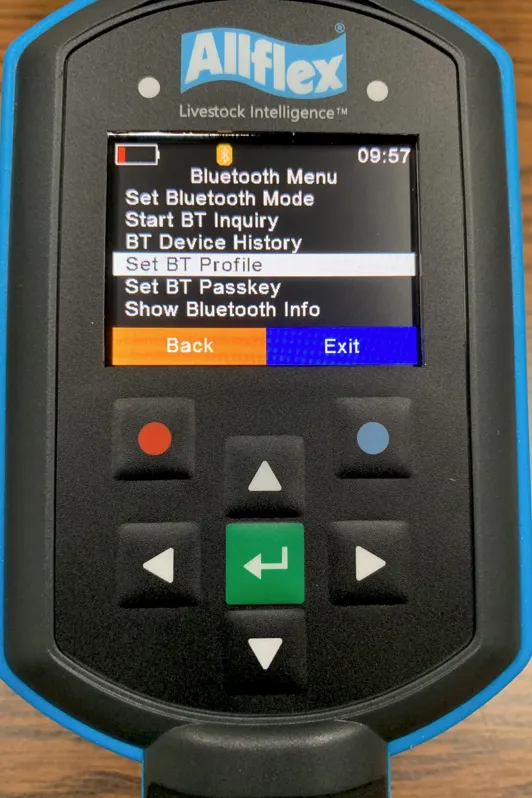
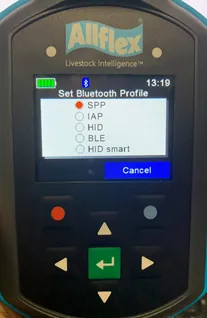
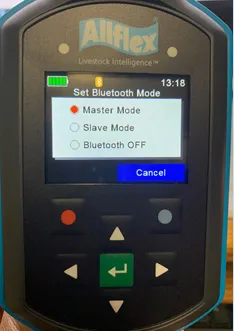
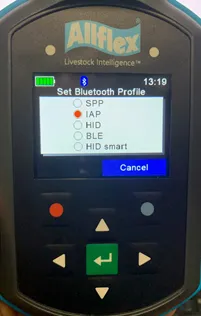
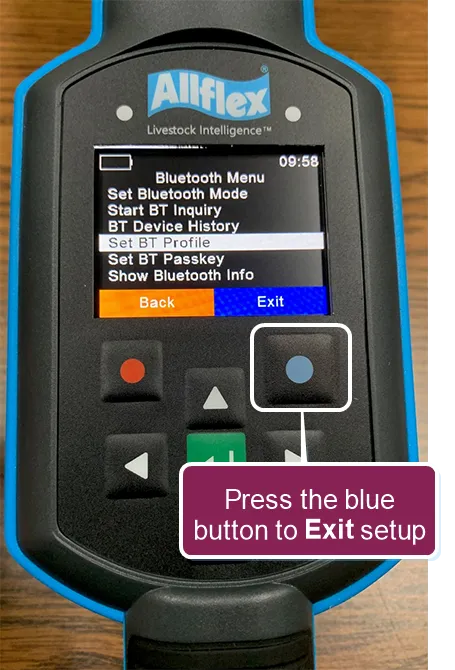
if you purchased your allflex scanner from vas, follow the steps below to connect it to your android or ios device was my scanner purchased from vas? check the back of your scanner to confirm if it was purchased from vas all scanners purchased from vas have vas scan the qr code stickers tip although these pairing instructions apply to the allflex apr250, awr300, and apr600 scanner models, images shown are from the awr300 expand the sections below to learn more required setup before you connect the allflex apr250 rfid scanner, allflex awr300 rfid scanner, or allflex apr600 rfid scanner, download the latest firmware from the allflex website https //www allflexsa com/products/readers/game livestock/ if you purchased the scanner from a third party, verify with the seller that the scanner has all of the necessary configuration files installed before you continue navigation tips the display is not a touchscreen; options are selected using the arrow buttons to confirm a selection, you must press the enter button to confirm options highlighted in orange or blue, press the red or blue button instead power on the scanner press the red button in the bottom half of the display to open the menu using the arrow buttons, select setup and press the enter button select interface setup and press the enter button select bluetooth and press the enter button select set bluetooth mode and enter button set the bluetooth for your device type android select slave mode and press the enter button select set bt profile and press the enter button select spp and press the enter button ios select master mode and press the enter button select set bt profile and press the enter button select iap and press the enter button press the blue button to exit setup press the enter button to begin scanning